Topic 4
Merge
Merge the reviewed pull request into main on GitHub, then update local main in the VS Code integrated terminal on Windows.
What a merge means
Merging applies changes from a work branch to a target branch. In this guide, you merge the reviewed pull request into main on GitHub.
GitHub records the reviews and merge result on the pull request. The commit history added to main depends on the selected merge method.
Confirm the Pull Request is ready
At the top of the pull request, confirm base: main and compare: draft-section. Recheck the files proposed for merging in Files changed.
Confirm that requested changes and the team’s review are complete. If the repository requires approvals or automated checks, confirm they passed. If new commits arrived after the last review, reread the diff and request another review when needed.
Merge the approved Pull Request
At the bottom of the PR, check the merge methods allowed by the repository. Merge pull request preserves the individual commits and adds a merge commit; Squash and merge makes one commit; Rebase and merge reapplies commits on main. Follow the team’s chosen method.
After checking the merge status, select the chosen merge method and its confirmation button. Confirm that the PR shows Merged and the changes appear on main. If the team has finished using the work branch, you can then choose Delete branch.
Update local main
After merging on GitHub, open the VS Code integrated terminal on Windows. Check and settle unfinished changes with git status, switch to local main, and pull GitHub’s main using --ff-only.
git status
git switch main
git pull --ff-only origin main
After the pull, use git status to check the current branch and remaining changes, then confirm the merged files are present locally. If --ff-only refuses, inspect commits that exist only on local main.
Bring main into a task branch
Use this procedure only while the PR is still open and your work branch needs changes from main. Settle unfinished changes, then switch to draft-section.
git status
git switch draft-section
git fetch origin
git merge origin/main
git fetch origin refreshes the GitHub branch information, and git merge origin/main integrates it into the current draft-section branch. The existing images below show an older conflict example using git pull origin main on new-contents.

If the branches contain conflicting changes, Git pauses the merge and VS Code lists the affected files under Source Control > Merge Changes. Without conflicts, the merge may finish immediately.
See the official VS Code conflict resolution guide for choosing the final content of a conflicted file.
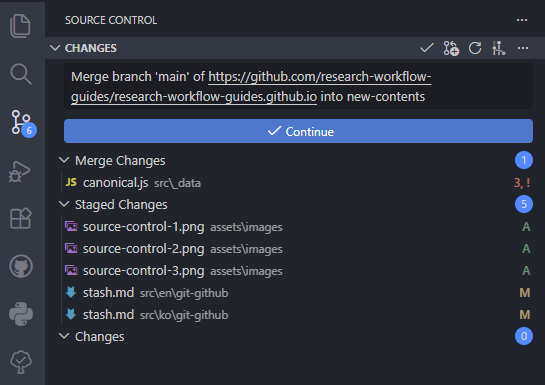
Open each conflicted file, choose the final content, and save it. Stage only the resolved files, then finish the merge. Depending on the VS Code version and current operation, the action may be labeled Commit or Continue, as in the example below.
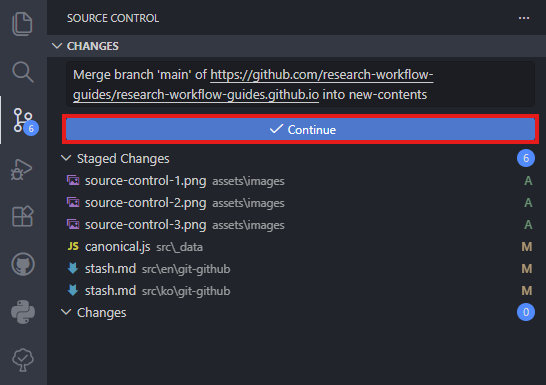
After the merge commit, Source Control may show the number of commits to publish. from_main in the existing image is an example commit message.
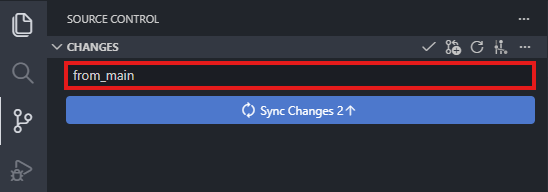
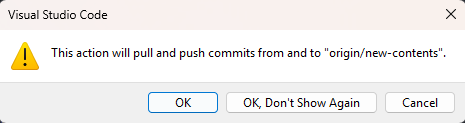
After completing the merge commit, run git push to publish the work branch. Sync Changes in the existing image may run both Pull and Push.
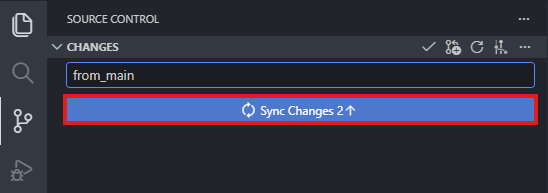
If you choose Sync Changes, read the branch named in the Pull and Push confirmation. The existing image shows origin/; if you are working on draft-section, cancel when the names differ and recheck the active branch.
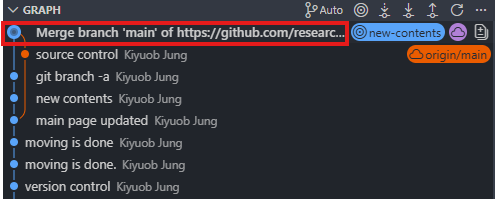
The existing image below shows a merge commit in Git Graph. If the branch fast-forwards, there may be no separate merge commit.