
Optional
Overleaf
Import the GitHub repository you use in VS Code on Windows into Overleaf for browser collaboration. Run Pull and Push between GitHub and Overleaf manually.
GitHub Sync access
GitHub Sync is an Overleaf premium feature. It may be available through an individual subscription, group subscription, or Overleaf Commons, so check whether your account has access.
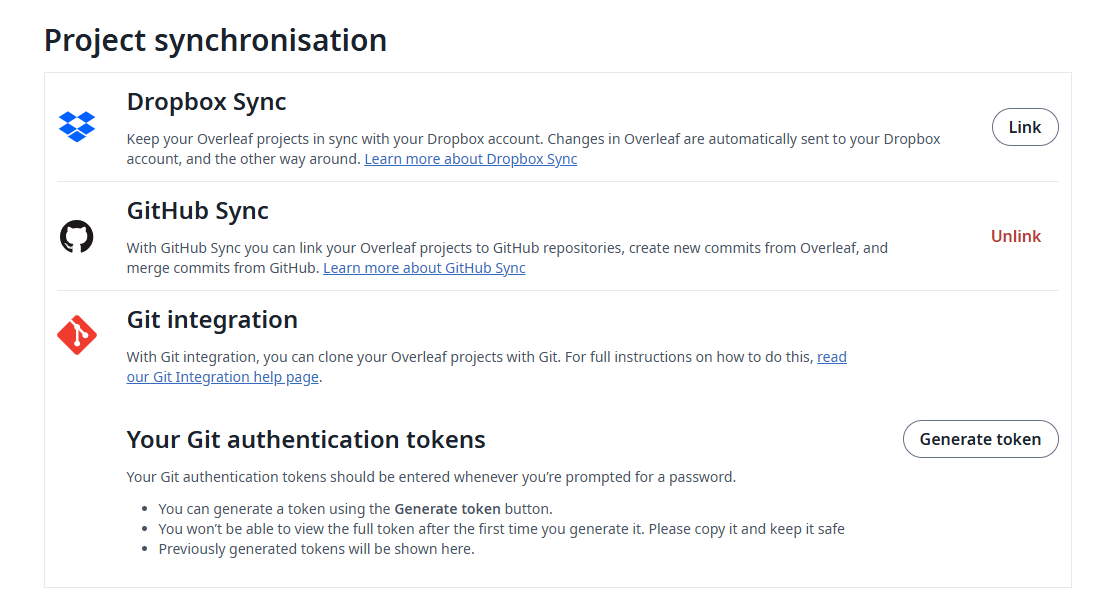
Check for GitHub Sync in your Overleaf Account Settings, as illustrated below. Confirm access to that feature rather than relying on a Professional label beside an email address. This connection procedure requires access to GitHub Sync.
Link GitHub
In Account Settings > Project Synchronisation, link your GitHub.com account through GitHub Sync and check that it can access the repository you intend to use. Git integration is a separate feature that uses an Overleaf project as a Git remote.
The older image shows an account that is already linked, so it displays Unlink. A new connection shows a linking action instead.
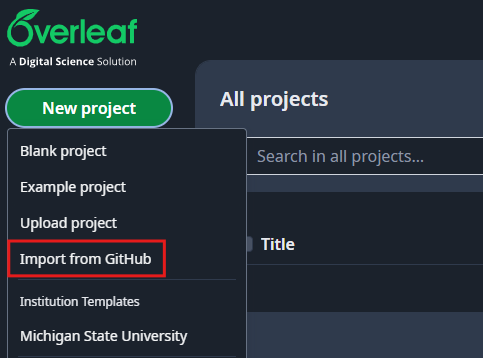
Import from GitHub
In Overleaf, choose New Project > Import from GitHub to create a new Overleaf project linked to your existing GitHub repository. Overleaf editing history and GitHub commit history are separate; move changes between them manually. You cannot later link an existing Overleaf project to an existing GitHub repository.
Select Import from GitHub in the older menu shown below.
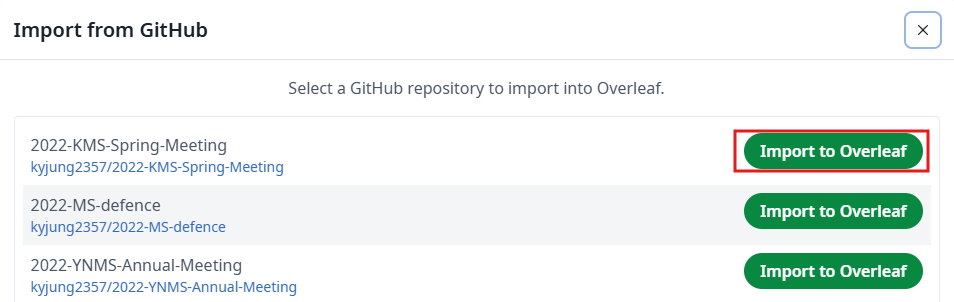
Check the owner and repository name, then select Import to Overleaf for the intended GitHub.com repository. If it is missing, check the connected GitHub account's repository access.
Overleaf limits project size and file counts, and it does not support Git LFS or submodules. Before importing a repository with many files, check Overleaf’s GitHub Sync limitations.
Work in Overleaf
Once the imported project opens in the Overleaf editor, collaborators invited through Share can edit it in the browser. Saved Overleaf changes do not reach GitHub automatically; run GitHub Sync when that work is ready.
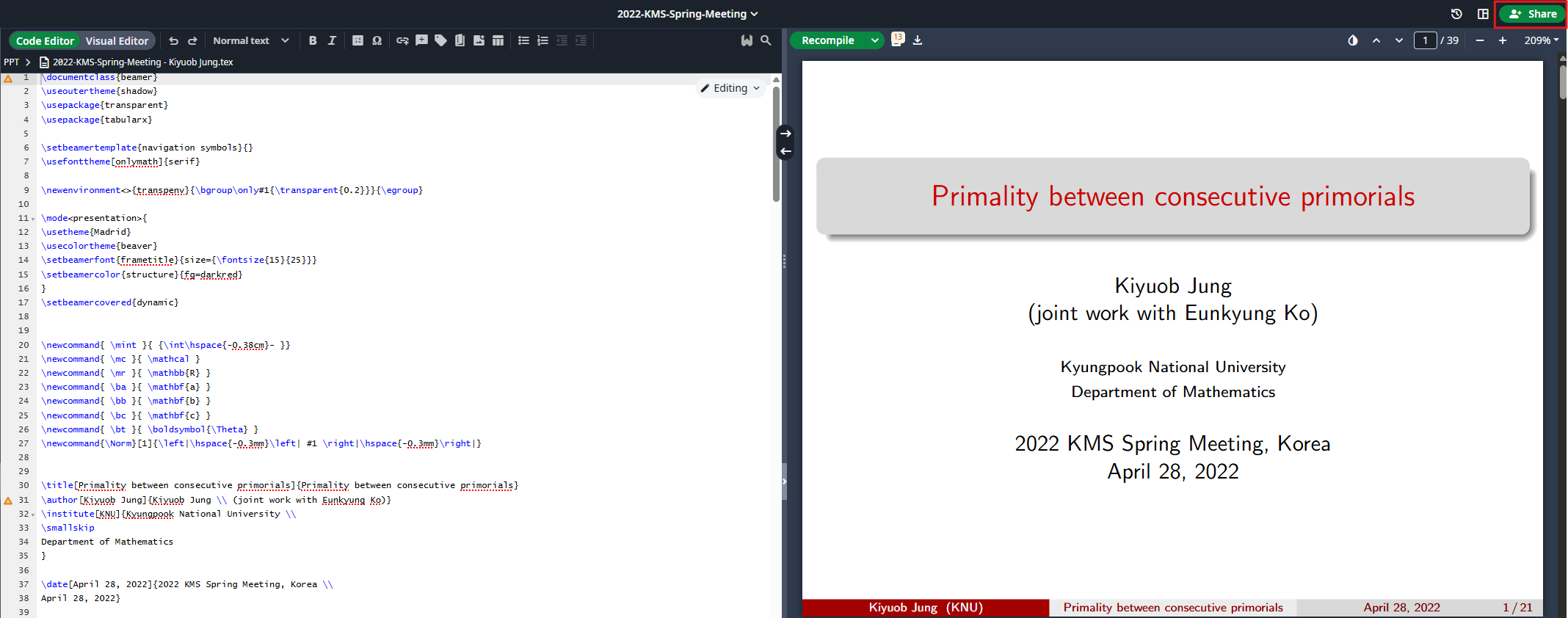
Synchronize with GitHub
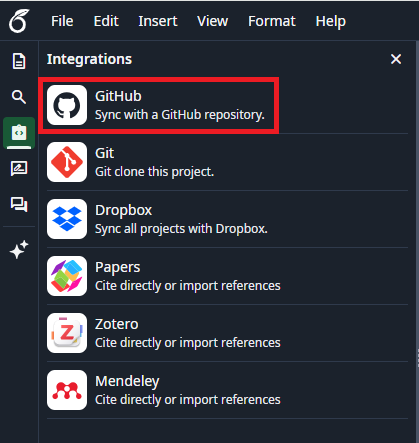
Open Integrations > GitHub in the Overleaf project to check synchronization status. If it reports new commits on GitHub, Pull them and review the project. Push Overleaf changes to GitHub as a separate action.
The GitHub entry in this older image opens the synchronization dialog.
Review the Overleaf edits, then select Push Overleaf changes to GitHub to create a GitHub commit. Pull that commit into your local VS Code repository afterward.
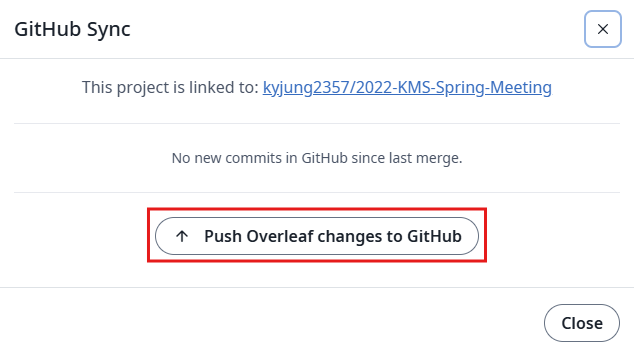
You can enter a commit message when pushing from Overleaf. GitHub shows the connected account as the commit author, so review individual collaborators’ edits in Overleaf’s separate history.
If edits to the same part conflict during synchronization, Overleaf may create a separate branch on GitHub. Merge that branch into the default branch and check synchronization status again.
Confirm that all of the following are true:
- you created the linked Overleaf project from the existing GitHub repository
- the Overleaf project is linked to the intended GitHub repository
- after pushing from Overleaf, you checked the GitHub commit and pulled it into VS Code
- if a conflict created a separate branch, you merged it into the default branch