Step 1
Installation
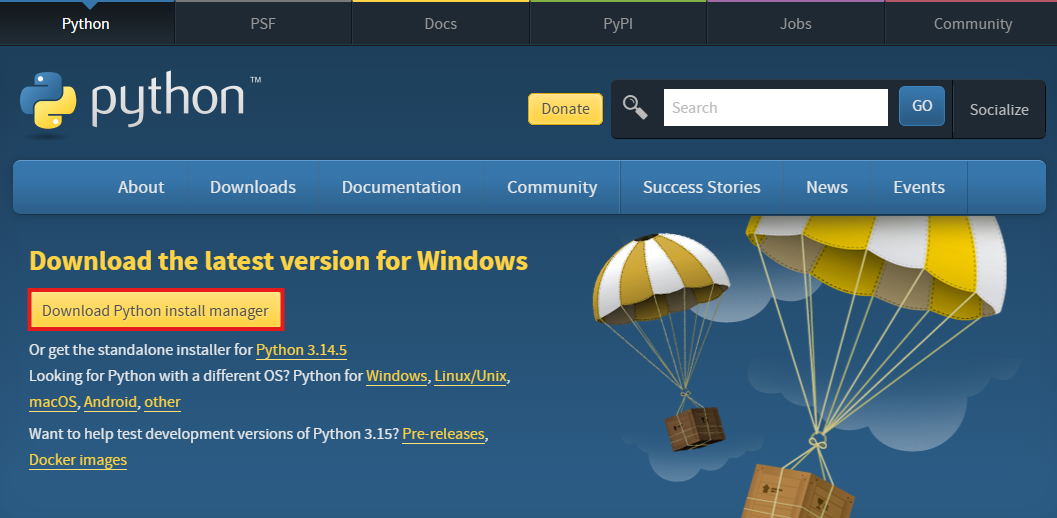
Download Python from the official site and choose the installer for your operating system.
Download Python
Open the official Python download page and choose the installer that matches your operating system.
Official Python downloadsIf the page detects your system automatically, use that download button. Otherwise, choose the correct Windows, macOS, or Linux option from the download page.
Windows
You can check whether Python is installed and where it is installed from Windows PowerShell.
py -0p
py --version
py -c "import sys; print(sys.executable)"
py -0p lists the Python versions detected by the Windows Python Launcher and shows each executable path. The * mark shows the default Python selected by py. py --version checks the default Python version. The final command prints the exact Python executable used by py.
If several Python versions are installed and you need to target Python 3.14 explicitly, replace py with py -3.14.
macOS / Linux
Using Python 3.14 as the baseline, you can check whether Python is installed and where it is installed from the terminal.
python3 --version
which python3
python3 -c "import sys; print(sys.executable)"
python3 --version checks the installed Python version. which python3 shows the command path found by the shell. The final command prints the exact Python executable used by that python3 command.
Python Extension
To use Python in VS Code, install the following extension.
Visual Studio Marketplace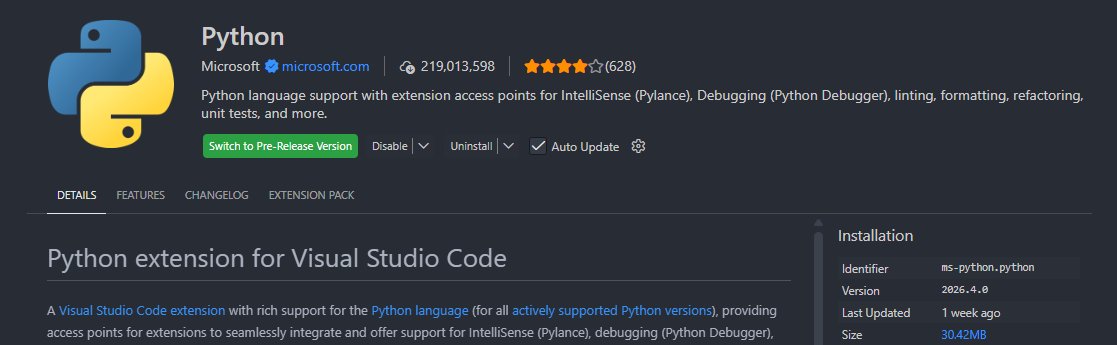
Jupyter Extension
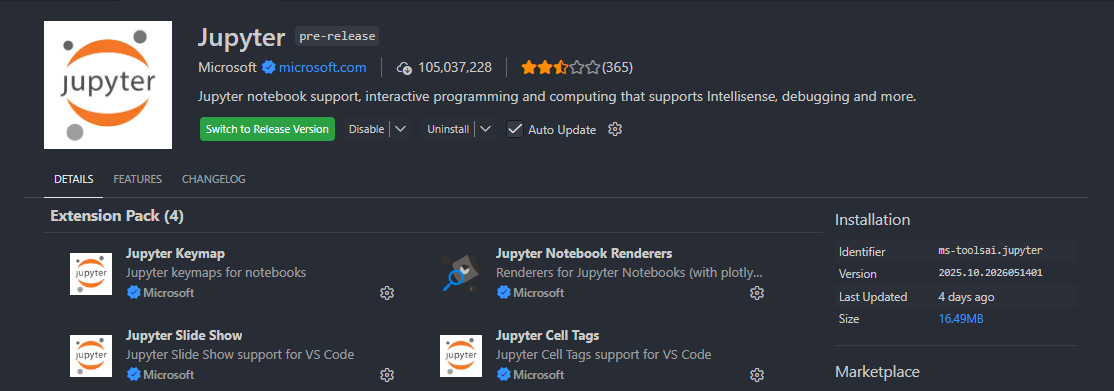
To work with Jupyter notebooks in VS Code, install the following extension.
Visual Studio Marketplace