
Optional
Sync Your VS Code Setup
On Windows, turn on Settings Sync with a GitHub account to sync your VS Code settings, extensions, and other setup when you reinstall VS Code or use another Windows PC.
What Settings Sync is
Settings Sync automatically synchronizes selected preferences between Windows PCs signed in with the same GitHub account.
In VS Code Settings Sync, you can choose which of the following items to synchronize:
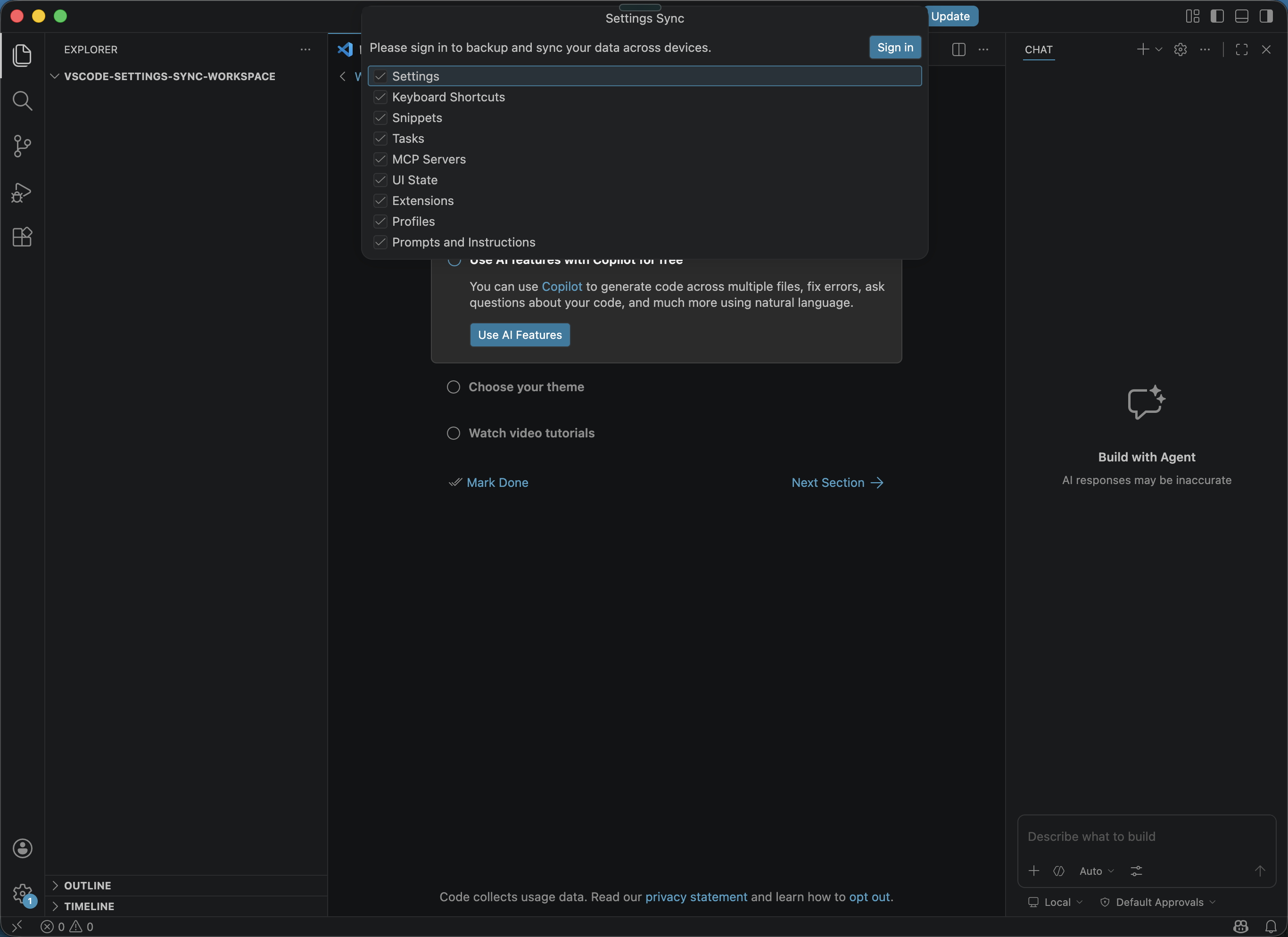
SettingsKeyboard ShortcutsSnippetsTasksMCP ServersUI StateExtensionsProfilesPrompts and Instructions
Turn on Settings Sync with GitHub
- Open the Command Palette with
Ctrl+Shift+P. - Run
Settings Sync: Backup and Sync Settings.... - Review the categories to sync, then select
Sign in. - In the account picker, choose
Sign in with GitHub. - Finish the GitHub sign-in flow in the browser and return to VS Code.
The screenshots below are macOS examples; use the same commands and sync categories on Windows.
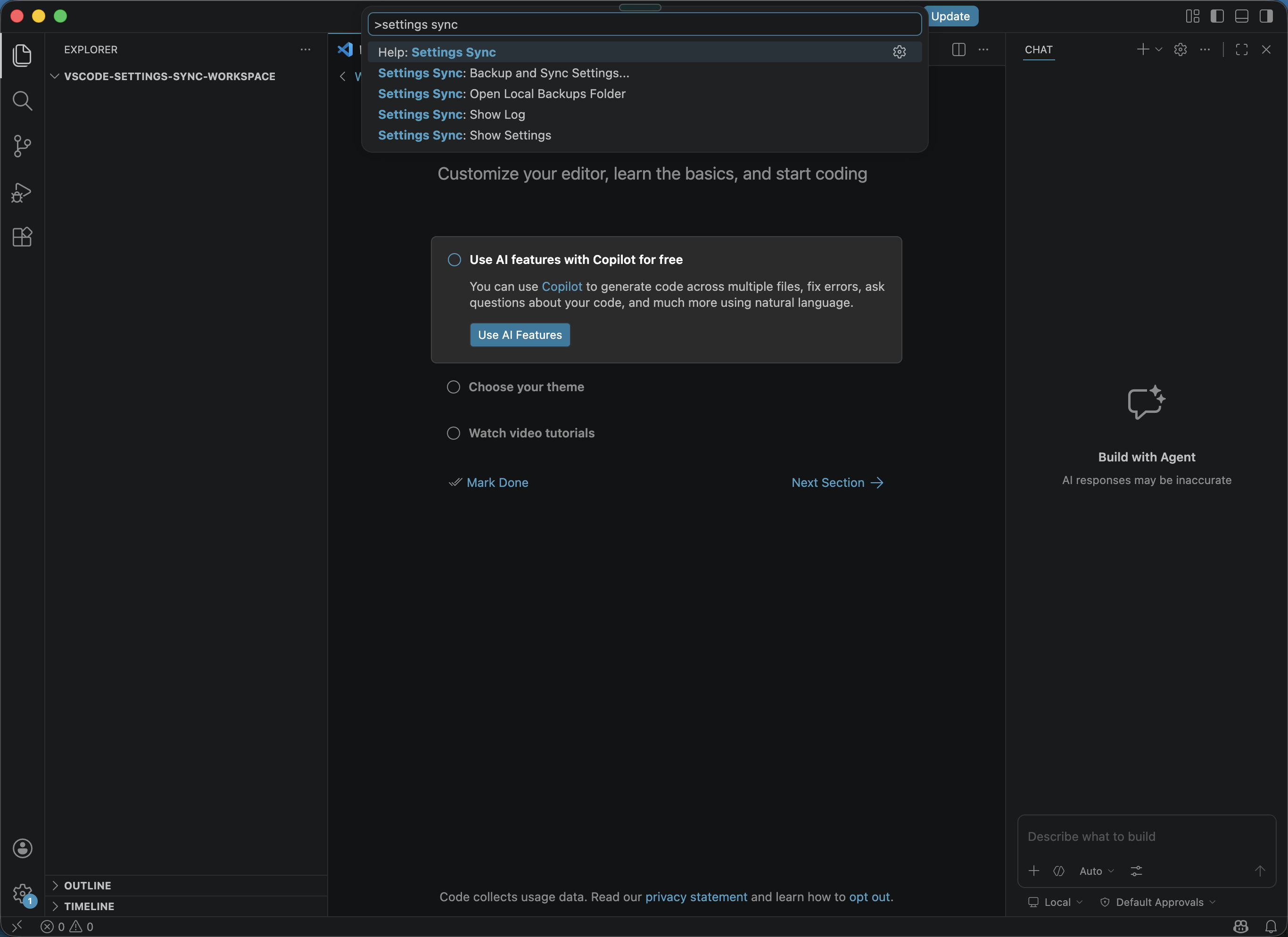
Run Settings Sync: Backup and Sync Settings... from the Command Palette. It is the second result in this example; the highlighted Help: Settings Sync opens help.
Review sync options
Review the categories selected by default. Clear any category you do not want to sync, and leave the others selected.
To change the selected categories later, run Settings Sync: Configure... from the Command Palette.
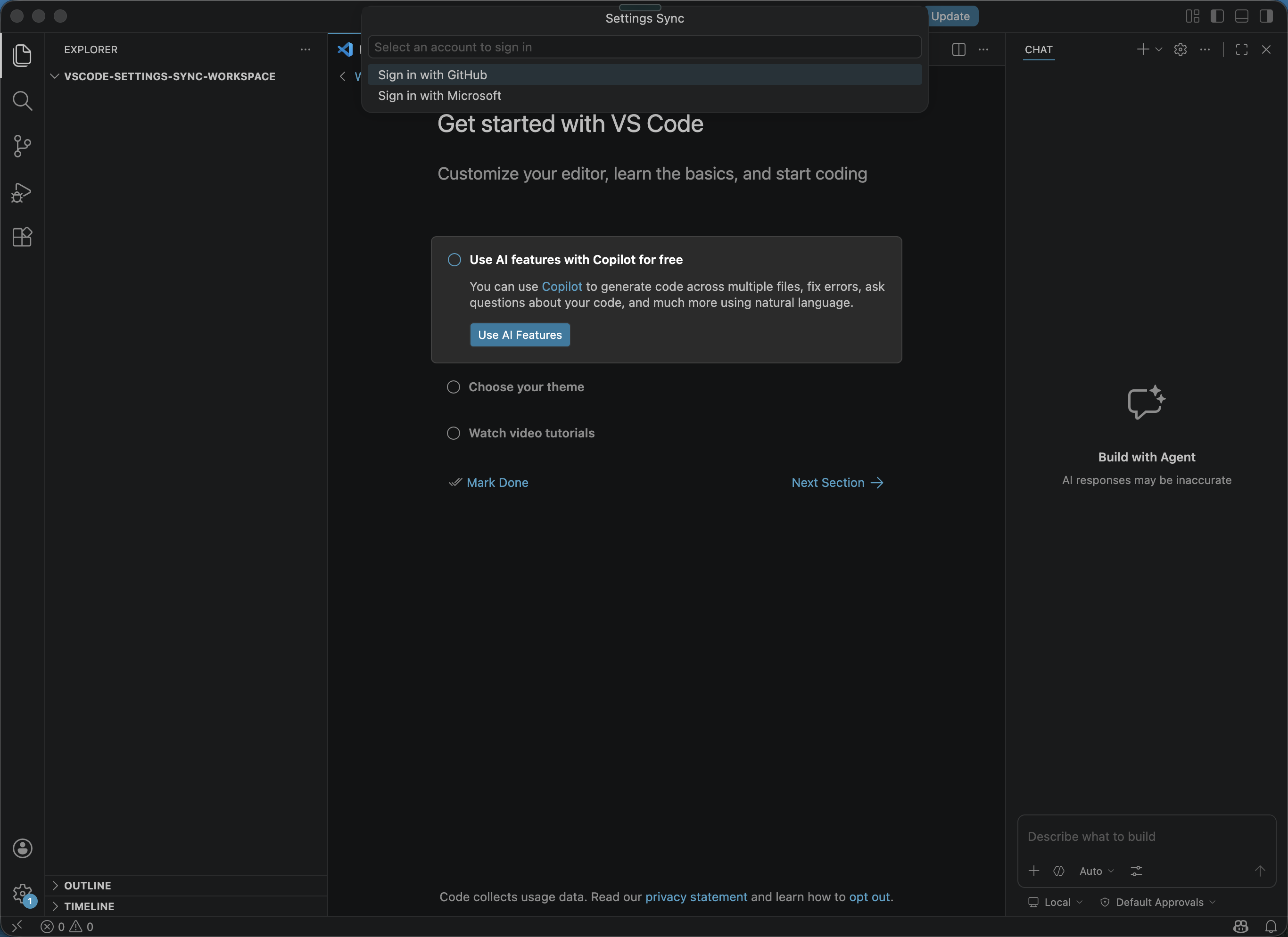
After selecting Sign in, choose Sign in with GitHub.
Restore the same setup on another machine
On another Windows PC, install VS Code and turn on Settings Sync with the same GitHub account to synchronize the selected categories.
When you turn on Settings Sync, VS Code automatically merges local and cloud data. If it cannot resolve a conflict, synchronization pauses and prompts you to resolve it. Use Show Conflicts to compare both versions before completing the merge.