Step 1
Open Project Folder
The previous step used check-document.tex for the first build. Now open the seed-document folder containing the sample manuscript in VS Code. Keep the manuscript, figures, and bibliography files together in this folder.
Open folder
Select File > Open Folder... in VS Code. If the window is empty, you can also use the Open Folder button in Explorer.
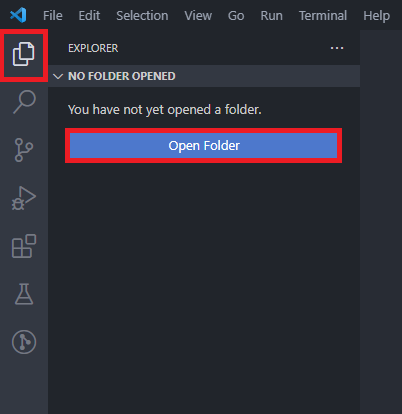
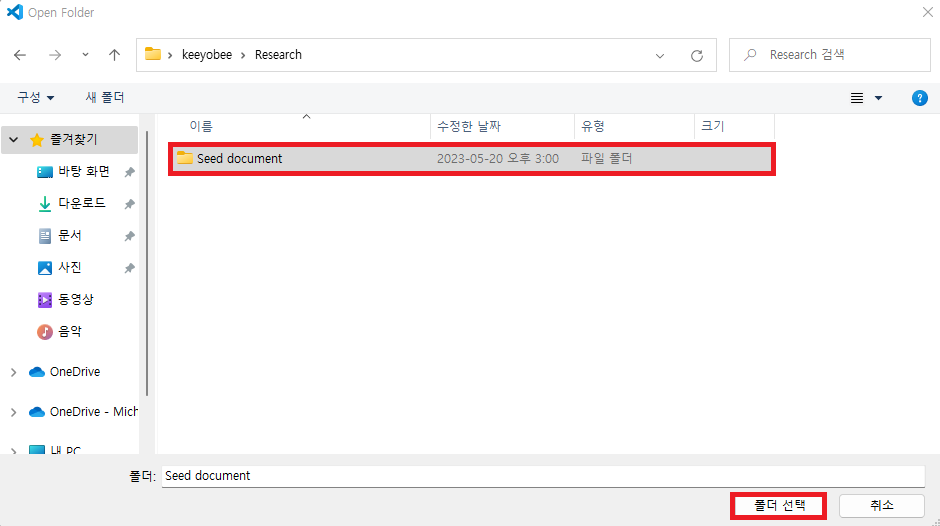
Inside the extracted seed-documents folder, select the seed-document folder containing seed-document.tex, bibliography.bib, and figure.jpg.
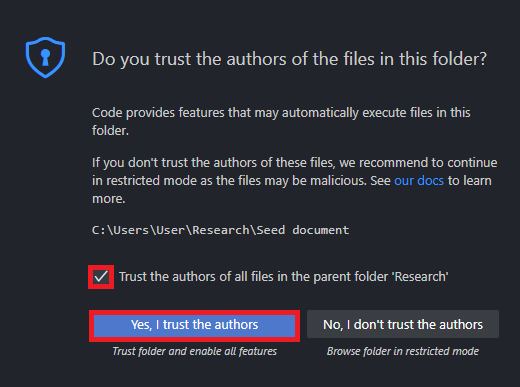
The selected seed-document folder opens as a VS Code workspace. If Workspace Trust appears, review the folder's files and choose Yes, I trust the authors only when you trust their contents. Unlike the example screenshot, leave the option to trust the entire parent folder unchecked.
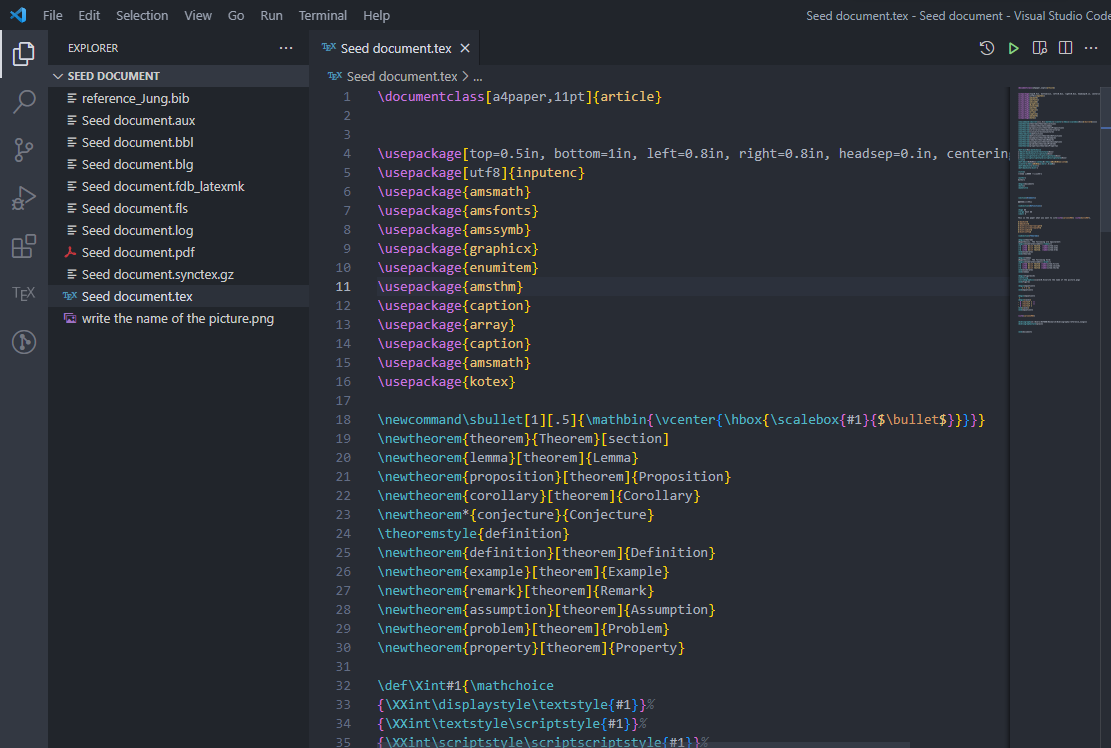
Check that Explorer shows the seed-document folder at the top, with seed-document.tex and bibliography.bib inside it.
Build the sample manuscript
- Open
seed-document.texin Explorer, then pressCtrl+Shift+Pand runBuild LaTeX projectfrom the Command Palette. - Check that LaTeX Workshop reports a successful build, then run
View LaTeX PDF fileto openseed-document.pdf.
If LaTeX Workshop cannot find the root file, check that Explorer shows the seed-document folder and reopen seed-document.tex.
Open another folder
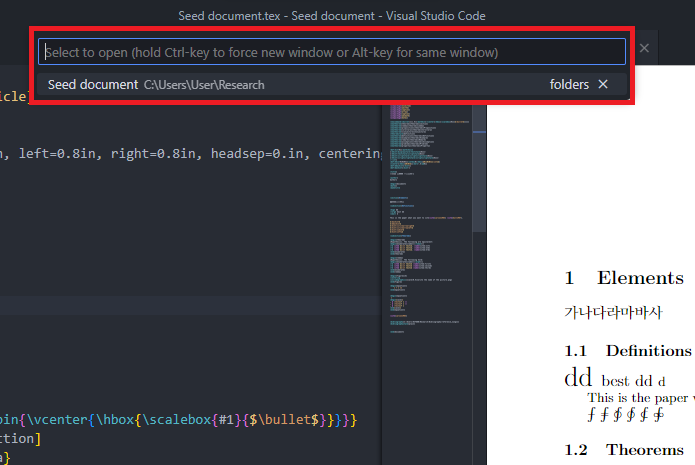
To reopen a recent folder, press Ctrl + R and select it from the list. If it is not listed, use File > Open Folder... to open the folder.