
Step 3
Settings
After building and previewing seed-document.tex in the previous step, review LaTeX Workshop settings in VS Code on Windows. Change only the settings you need, then check the build and preview again.
Start with command names
Before changing settings, run Build LaTeX project and View LaTeX PDF file from the Command Palette (Ctrl+Shift+P) to check the current build and preview behavior.
Build LaTeX project: build the manuscriptView LaTeX PDF file: preview the PDFSyncTeX from cursor: find the cursor position in the PDFClean up auxiliary files: remove build auxiliary files
If you use a command repeatedly, check its current binding in Keyboard Shortcuts and assign a new combination only when it helps.
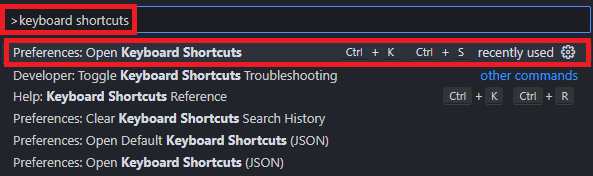
Press Ctrl+K, then Ctrl+S to open Keyboard Shortcuts. You can also run Preferences: Open Keyboard Shortcuts from the Command Palette.
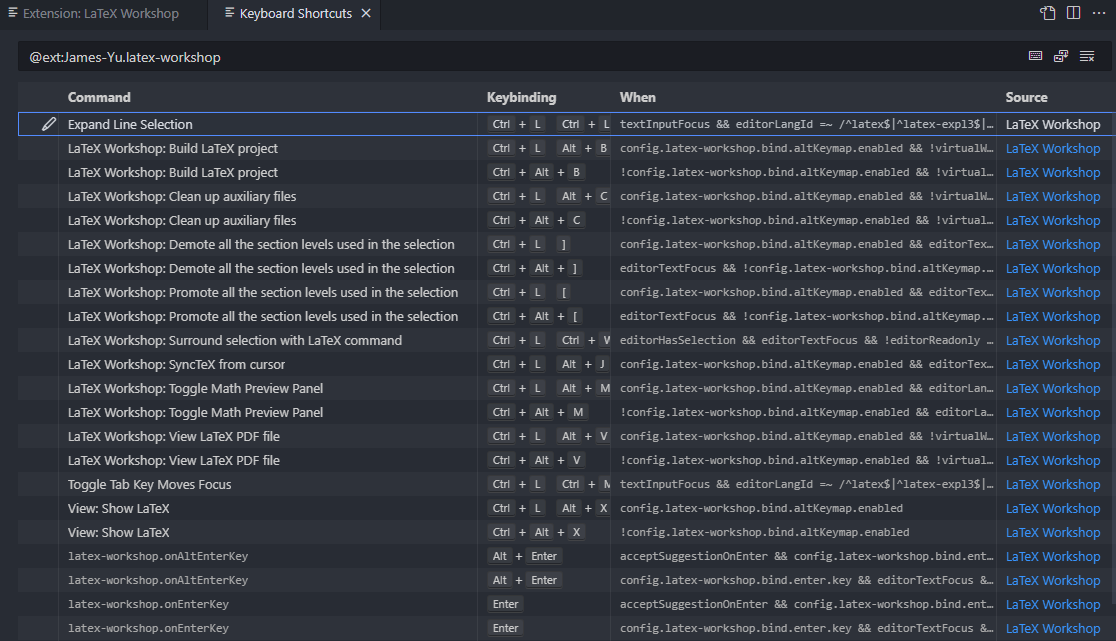
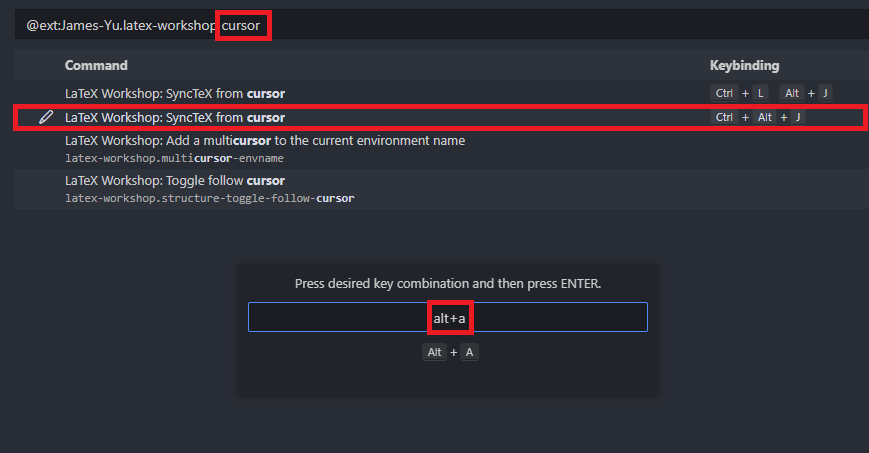
Enter LaTeX Workshop in the Keyboard Shortcuts search box. Check the listed commands and their current bindings, then choose one to change.
Promote repeat actions
Check the existing binding first. Choose one frequently used command without a convenient shortcut and assign a new one.
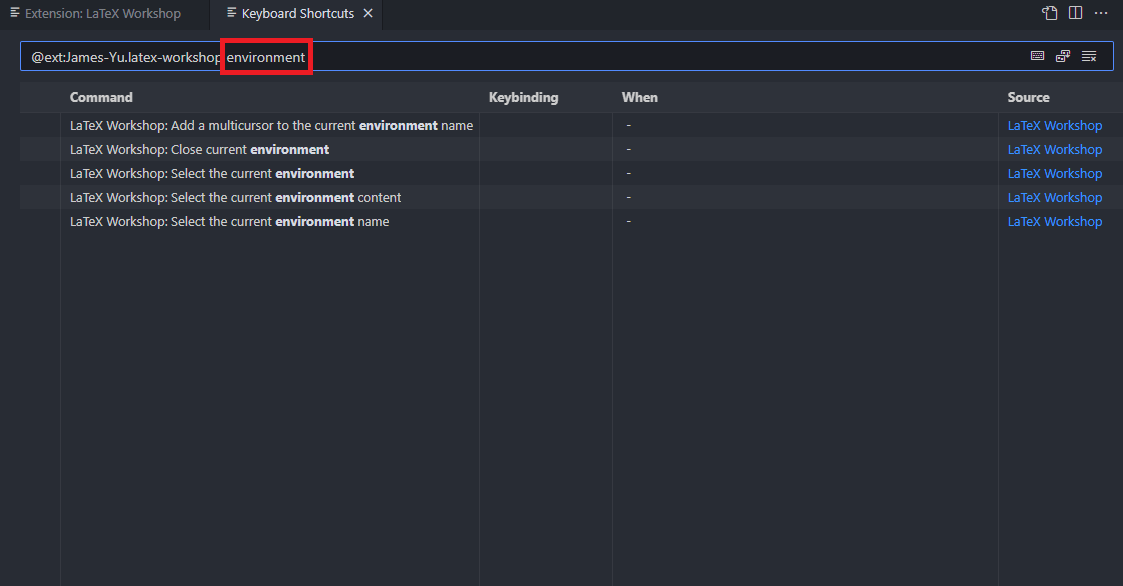
For example, add environment to the search box to show LaTeX Workshop commands whose names contain that word.
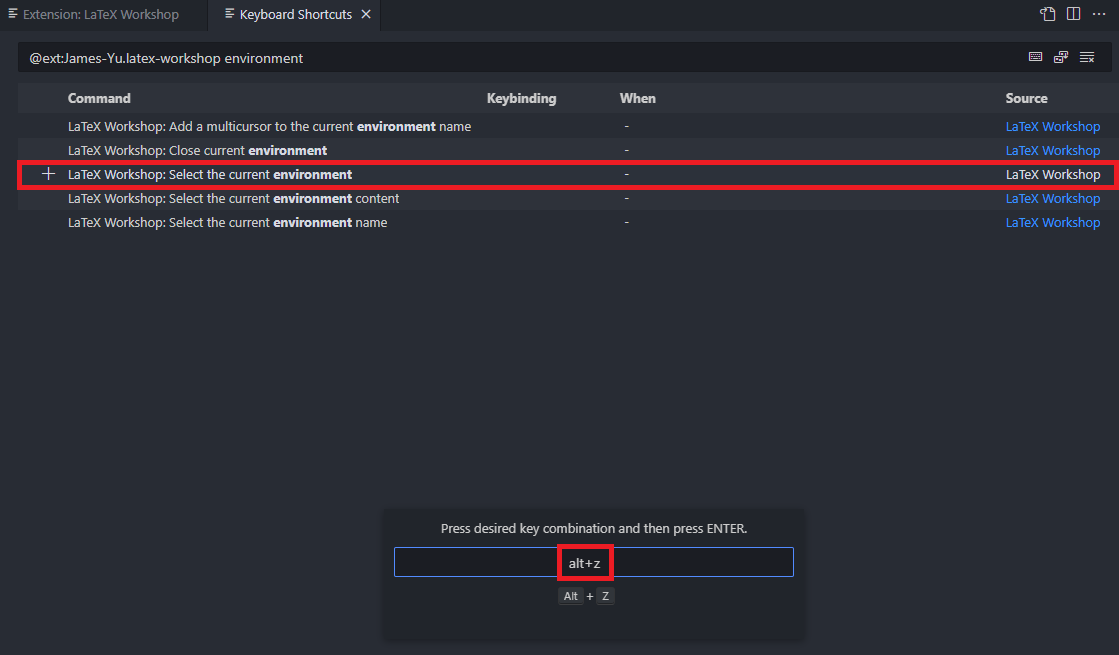
Select the command, press the desired key combination in the shortcut input, then press Enter to save it.
SyncTeX from cursor jumps from the source cursor to the corresponding PDF position. On Windows, try its default shortcut, Ctrl+Alt+J; search for the command in Keyboard Shortcuts if you want to change it.
Find your settings files
On Windows, press Ctrl+Shift+P and run Preferences: Open User Settings from the Command Palette. User settings apply to all your VS Code projects.
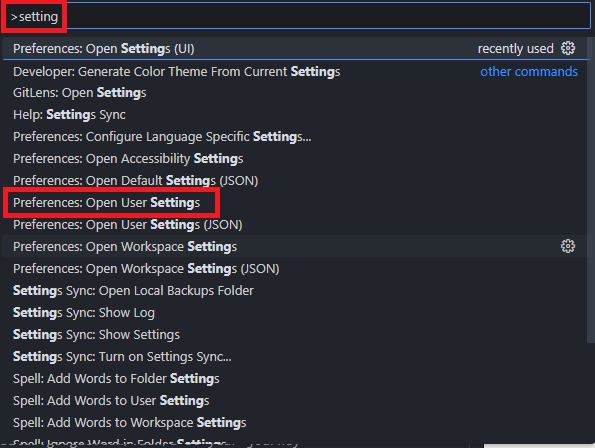
To apply a setting only to this project, run Preferences: Open Workspace Settings from the Command Palette. To open the JSON file directly, run Preferences: Open Workspace Settings (JSON). VS Code stores it in the project’s .vscode/, and it takes precedence over user settings.
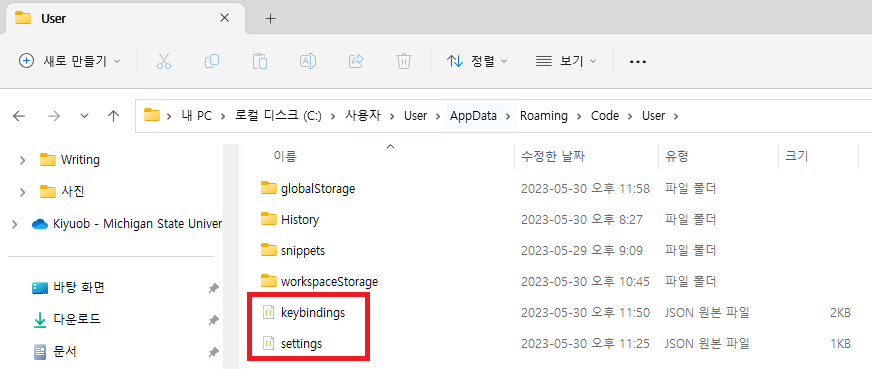
To edit settings.json directly, run Preferences: Open User Settings (JSON) from the Command Palette. For the default Windows profile, the file is at %APPDATA%\.
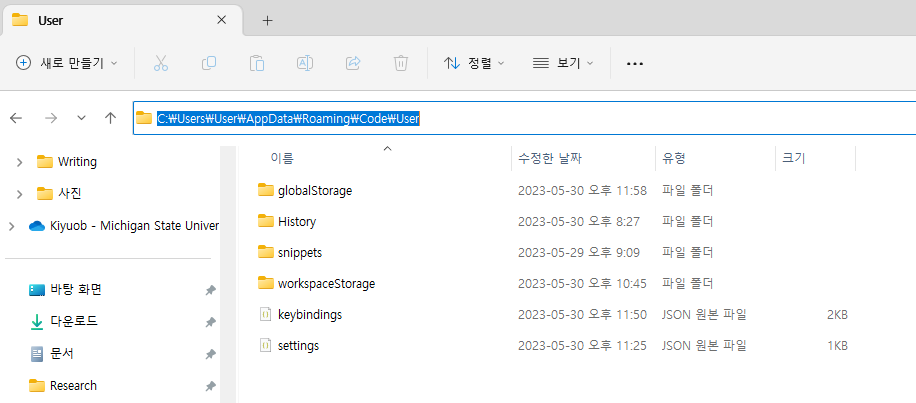
settings.json stores user settings, and keybindings.json stores customized shortcuts. When using the linked settings example repository, add only the entries you need to your current files.
Useful defaults
Check LaTeX Workshop’s defaults first. The options below control building, PDF preview, and auxiliary-file cleanup.
Enter LaTeX Workshop in the Settings search box. Use the User tab for values shared across your projects and the Workspace tab for values specific to this project.
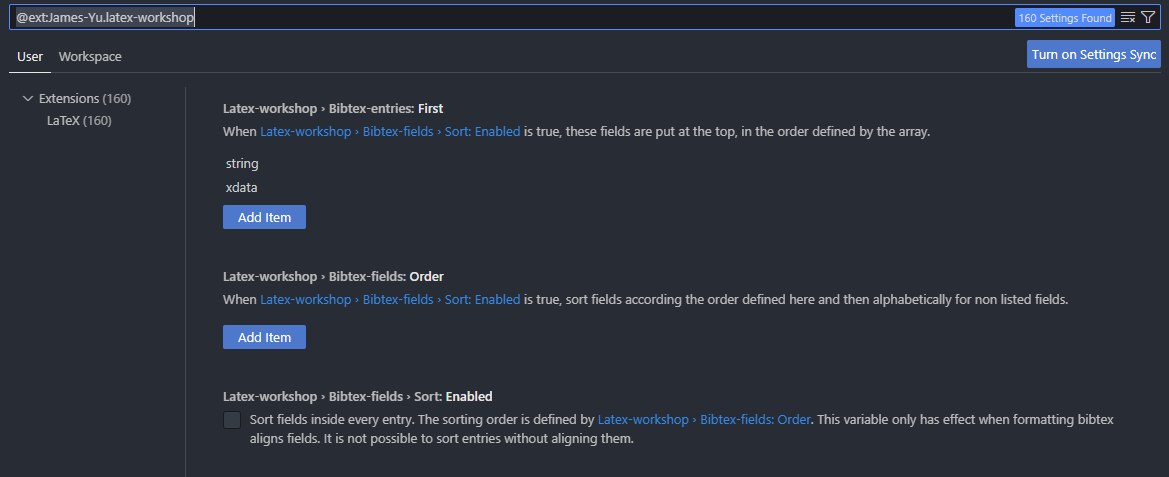
latex-workshop.latex.autoBuild.run: defaults toonFileChange; useonSaveto build when savinglatex-workshop.view.pdf.viewer: defaults totablatex-workshop.latex.autoClean.run: defaults toneverlatex-workshop.latex.recipe.default: defaults tofirst
Example settings
To build when you save a .tex file, add the following entry inside the User or Workspace settings.json object you chose above. Keep your other settings in place.
{
  "latex-workshop.latex.autoBuild.run": "onSave"
}
Add a short test phrase to the body of seed-document.tex and save it. Check that LaTeX Workshop builds automatically and the phrase appears in the PDF preview, then remove the phrase and save again.