Step 3

Connect GitHub

Open the VS Code terminal, set your global Git name and email, and confirm the settings before creating a repository.

Open the terminal

Use the Command Palette to open a fresh terminal inside VS Code.

Open the Command Palette, search for terminal, and select Terminal: Create New Terminal. Open it with Ctrl+Shift+P (macOS: Cmd+Shift+P).

VS Code Command Palette with Terminal: Create New Terminal selected

After the command runs, confirm that the integrated terminal appears at the bottom of VS Code.

You can also open a new terminal directly with Ctrl + Shift + ` on Windows or Cmd + Shift + ` on macOS.

VS Code integrated terminal opened

Set name and email

Set the name and email that Git will attach to commits made from this machine.

Run the name command first. Replace NAME with the name you want to appear in your commit history.

git config --global user.name "NAME"
VS Code terminal with git config global user.name command

Then run the email command. Use the email address that belongs to the GitHub account you prepared.

git config --global user.email "EMAIL"
VS Code terminal with git config global user.email command

Verify the configuration

Check the saved configuration before moving on.

git config --list

Run git config --list in the same terminal.

VS Code terminal with git config list command

In the output, confirm that user.name and user.email match what you entered. You only need to do this setup once on the same machine.

VS Code terminal output showing user.name and user.email in git config list

Sign in when prompted

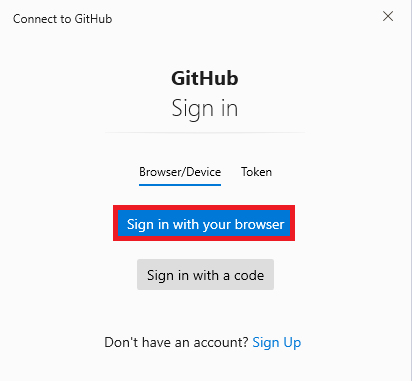
At some point VS Code may ask you to sign in to GitHub. If you see a prompt with Sign in with your browser, click it and complete the GitHub login in the browser.

Use the browser sign-in option for the normal GitHub login flow.

VS Code Connect to GitHub dialog with Sign in with your browser highlighted

If git config --list shows the correct name and email, and any GitHub sign-in prompt has been completed, continue to repository creation.