
Optional
Source control
On Windows, inspect file changes in VS Code Source Control, save unfinished work for later, or discard unwanted changes. You can also undo a local commit that has not been published.
Open changes
On Windows, press Ctrl+Shift+G to open Source Control and see modified, added, or deleted files. Changes lists files that are not staged; Staged Changes lists files selected for the next commit.
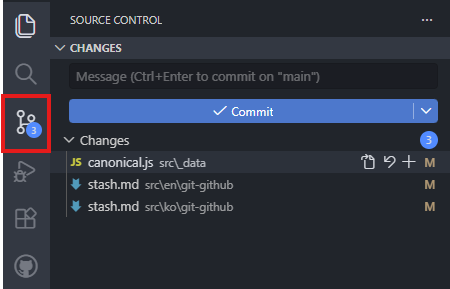
The Source Control badge summarizes changed items in the repository. The number beside Changes counts items that have not been staged.
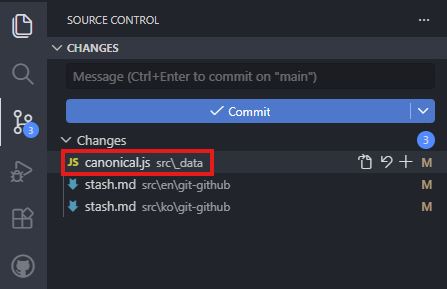
Select a file under Changes to inspect its changes.
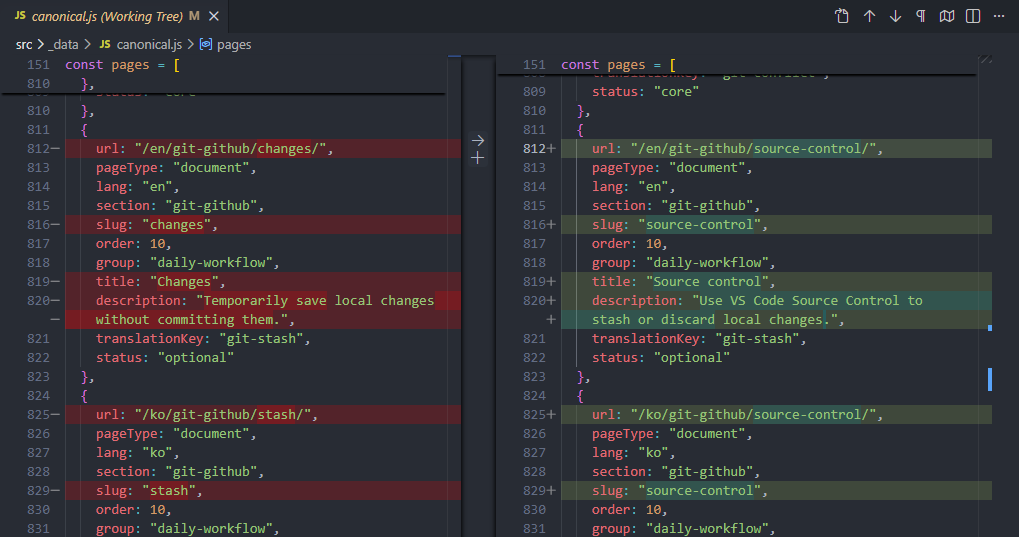
In a side-by-side diff, the last committed file appears on the left and the current working file on the right. A narrow editor may show an inline diff instead. Use the added and removed line indicators to inspect the change.
Save changes with Stash
Use a stash to put uncommitted changes aside while you handle another task. A stash stays local and is not uploaded to GitHub by Push. Press Ctrl+Shift+P, run Git: Stash, and enter a descriptive message. To include new, untracked files as well, choose Git: Stash (Include Untracked).
The older screenshot below also shows generated .aux, .log, and .pdf files. Check whether a new file belongs in the stash before including it; use Gitignore rules for generated files you normally exclude from commits.
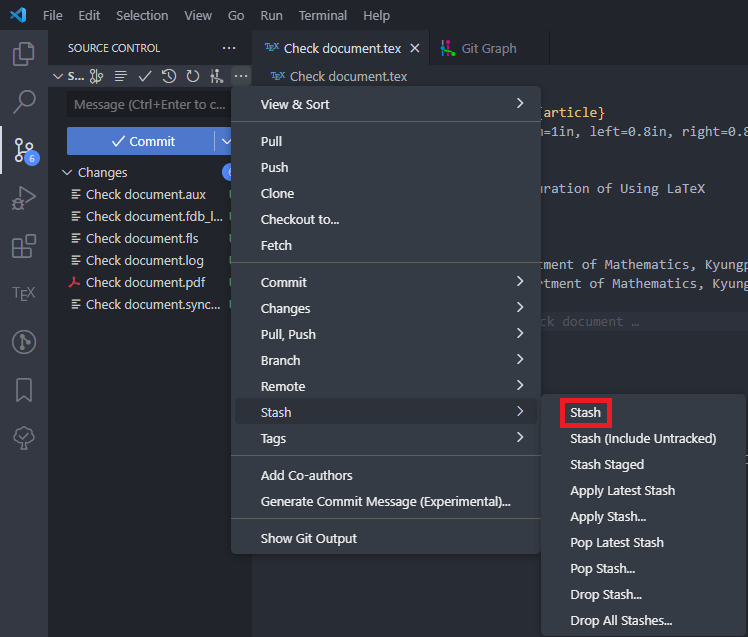
Use Git: View Stash to inspect a stash first. Git: Apply Stash... restores the selected changes and keeps the stash entry; Git: Pop Stash... removes the entry after applying it successfully. Resolve any conflicts with current work before continuing.
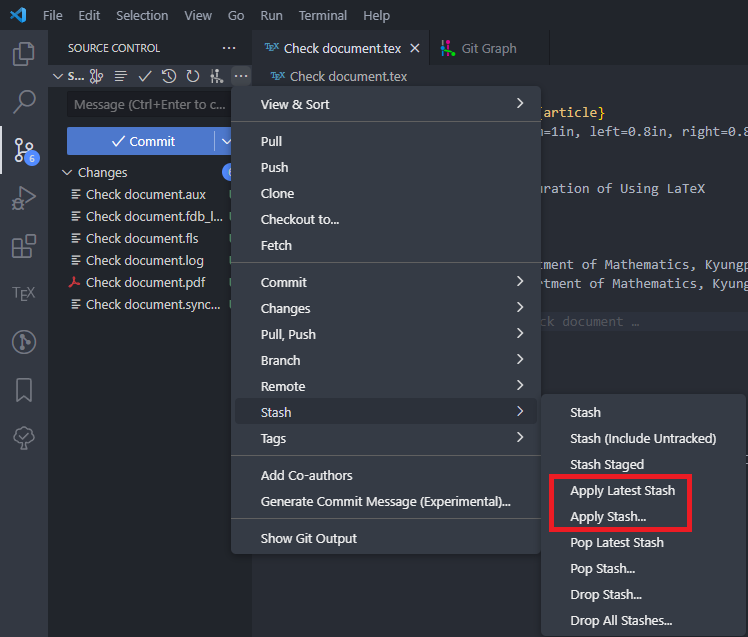
Discard Changes
To discard uncommitted changes in one file, right-click it under Changes and select Discard Changes. A new, untracked file has no earlier version to restore and may be removed, so check the target first.
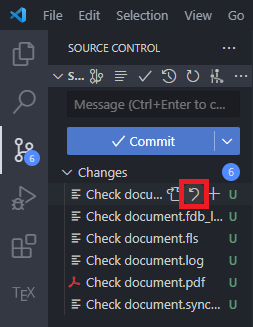
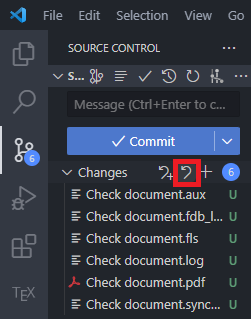
The discard button beside Changes discards changes across the list. Use the file action when you only intend to discard one file, and review the confirmation dialog’s file list before discarding everything.
Undo local commits
If you made the last commit but have not pushed it, you can remove that commit while keeping its file changes in your working folder. First check the current branch and the commit you intend to undo.
In the example below, Sync Changes 1↑ means the local branch is one commit ahead of its remote branch. Confirm that the commit has not been pushed before continuing.
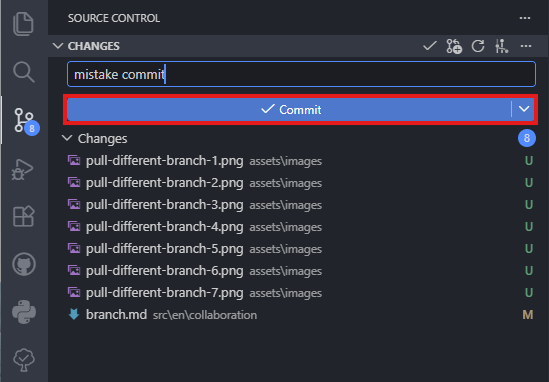
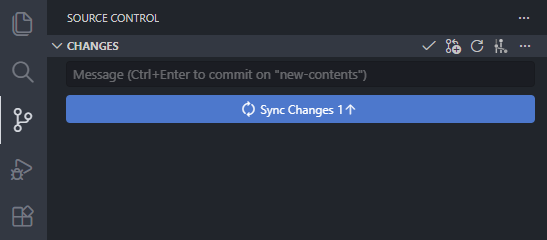
To undo only the latest unpublished commit on the current branch, run this command in the integrated terminal:
git reset --mixed HEAD~1
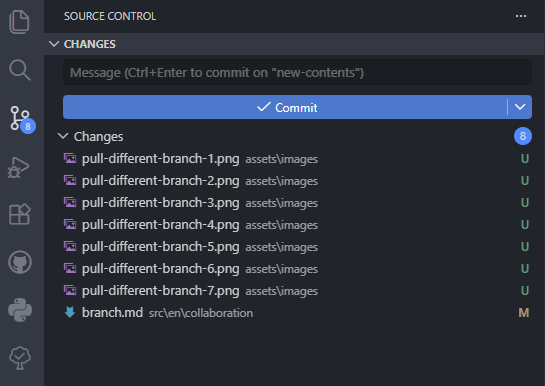
This command moves the current branch back one commit and resets the staging area while keeping the working files. Modified existing files appear under Changes; files first added in the undone commit may appear as untracked files.
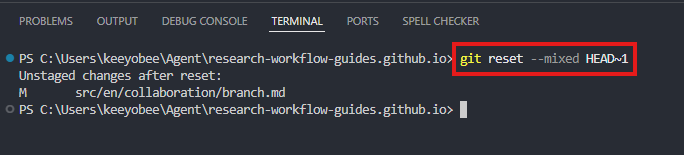
After the reset, inspect the remaining files in Source Control and stage only those you still need.
Do not use this Reset command for a commit that has already been pushed or shared. If you need a new commit that reverses published changes, see the Git revert documentation.
Before discarding changes, applying a stash, or resetting a commit, run git status to review modified, staged, and untracked files. Preserve work you might need in a separate commit or copy first.
git status