
Optional
Gitignore
On Windows, use .gitignore in VS Code to keep generated files and local folders out of Git tracking.
Ignore a new folder
List generated files or local folders that Git should not track in the repository’s .gitignore file. New files matching a rule are excluded from ordinary git add operations.
Ignore rules are useful for generated .aux and .log files or temporary folders used only on your computer. Decide which source files, such as manuscripts and bibliographies, the project should share and commit those as needed.
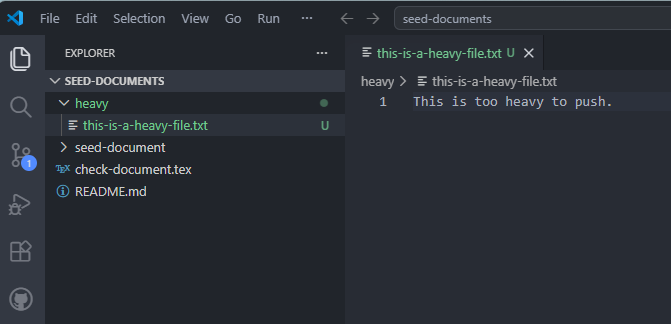
In this example, we will tell Git to ignore the heavy folder. It contains files that Git does not yet track.
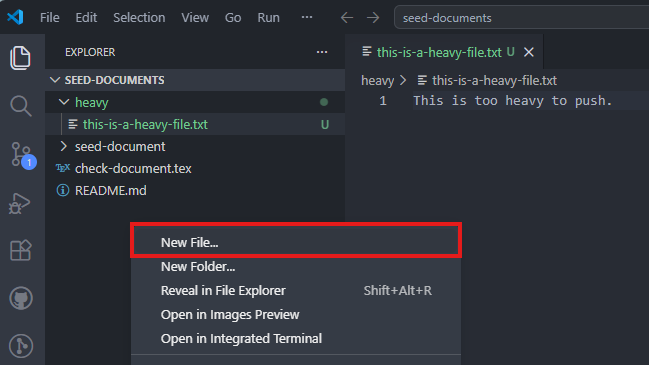
In VS Code, right-click the repository's root folder and select New File....
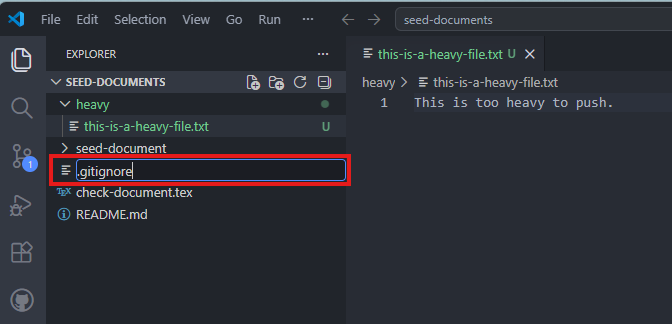
Name the new file .gitignore. Place it at the same root level as the example heavy folder.
Enter heavy/ on its own line in .gitignore, then save the file. The trailing / marks a directory. This rule applies to directories named heavy below the location of this .gitignore. The older example uses heavy, which also excludes the folder; use heavy/ here to specify a directory.
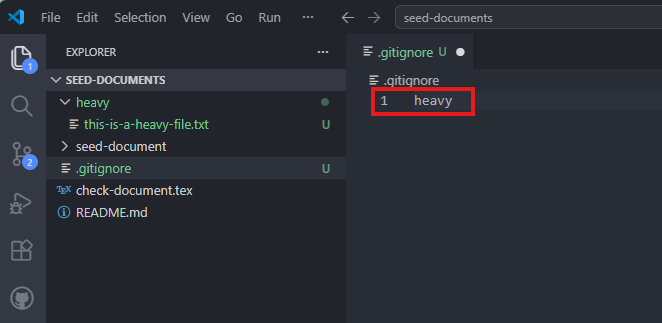
After saving the file, VS Code may dim the ignored folder. Check the rule with the Git command below regardless of how the folder appears.
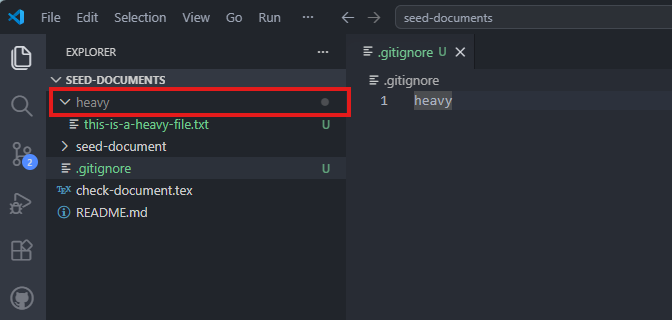
Run this command from the repository root. If the output names the heavy/ rule in .gitignore, Git is ignoring the example file.
git check-ignore -v heavy/this-is-a-heavy-file.txt
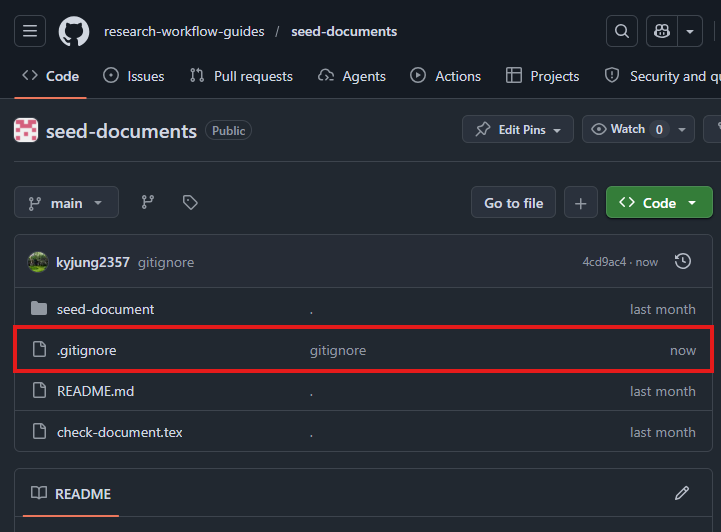
Commit and push only .gitignore and the source files you intend to share.
The committed .gitignore appears in your private GitHub repository, while the heavy folder ignored from the start does not. The older screenshot below shows a public-repository example.
Stop tracking existing files
.gitignore rules apply to files Git does not yet track. A new rule does not automatically stop tracking a file already added with git add. To keep the local file while stopping Git tracking, remove its path from Git’s index.
If the example heavy/ folder is already tracked, start in the repository-root terminal by listing its tracked files. If the output contains only files you intend to stop tracking, remove the folder from Git’s index with the commands below. The local working files remain.
git ls-files -- heavy/
git rm -r --cached -- heavy/
git add .gitignore
git status
Review the removal of heavy/ from tracking and the .gitignore change in git status, then commit and push only those changes. The folder disappears from the latest GitHub file list, but earlier commits still contain its history. If a new file is not ignored, use git check-ignore -v to inspect the matching rule.