
Topic 1
Git status
After moving the project source files into the cloned repository, run git status to see which files Git does not yet track.
Check the current state
With the cloned repository folder open in VS Code, select Terminal > New Terminal. Check that the terminal opened in that repository folder, then run git status.
git status
Before the first commit, the output may show No commits yet and Untracked files. The existing image shows a repository with commits, so its origin/ line may differ from your result.
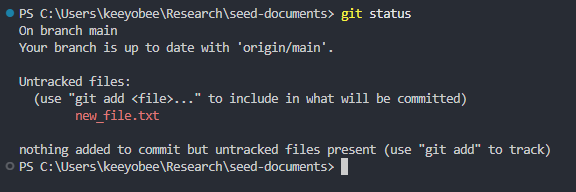
Basic file states
After moving the files, look under Untracked files. Later, distinguish Changes not staged for commit from Changes to be committed.
- Untracked files: New files that Git does not yet track.
- Changes not staged for commit: Changes to tracked files that have not been prepared for the next commit.
- Changes to be committed: Changes prepared for the next commit.
If generated PDFs or LaTeX auxiliary files appear in git status, check whether you need them before staging. Add files you want to exclude to .gitignore.