
Step 2 (Optional)
Shortcuts
Check the Windows VS Code shortcuts for commands you use while writing. If a shortcut behaves differently, inspect its current assignment in Keyboard Shortcuts.
Command Palette
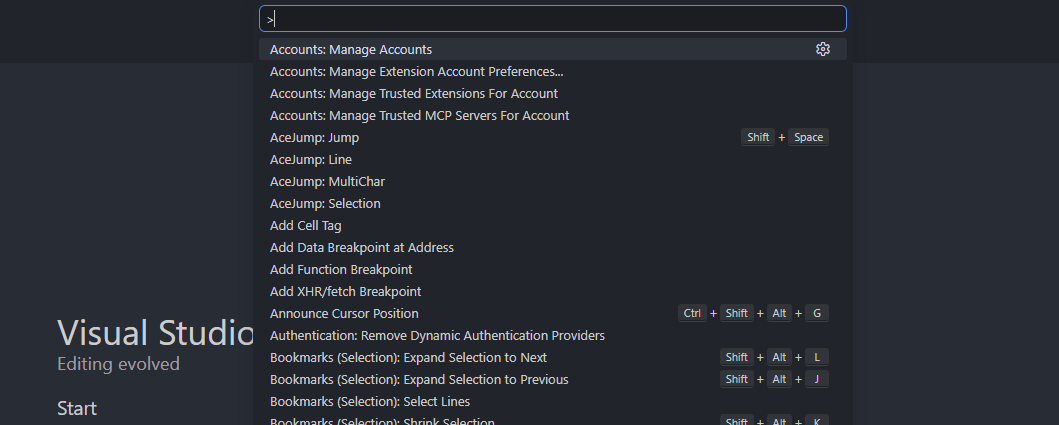
Use the Command Palette to search for and run VS Code commands by name. Type part of a command name to narrow the list.
On Windows, press Ctrl+Shift+P to open the Command Palette.
Basic shortcuts
-
Alt+Click
On Windows, hold Alt and click a position in the editor to add a cursor there. Use multiple cursors to edit several positions at once.
-
Ctrl+/
Toggle line comments for the current line or selected lines.
-
Ctrl+Alt+M
Toggles LaTeX Workshop’s Math Preview Panel in the default keymap. It shows a live preview of supported equations in a separate panel.
-
Ctrl+Alt+B
Runs LaTeX Workshop’s Build LaTeX project command in the default keymap. Ctrl+S saves the file; whether saving triggers an automatic build depends on the
latex-workshop.latex.autoBuild.runsetting. -
Ctrl+Shift+`
Opens a new integrated terminal in VS Code on Windows.
-
Ctrl+R
Shows recently opened folders, workspaces, and files. Select an item to reopen it.
-
Ctrl+Shift+N
Opens a new VS Code window on Windows.
Snippets
With LaTeX Workshop’s default settings, typing an @ prefix shows matching snippets in the completion list. Press Tab when the desired suggestion is selected to insert it.
-
@a\alpha -
@D\Delta -
@S\Sigma -
@6\partial -
@(\left( $1 \right) -
@{\left\{ $1 \right\} -
@[\left[ $1 \right]
For snippets with tabstops, the cursor starts at $1 after insertion. Enter the content, then press Tab to move to $2 and later tabstops.
-
@/→ When the fraction suggestion is selected, press Tab → Type numerator → Tab → Type denominator\frac{$1}{$2} -
@I→ When the integral suggestion is selected, press Tab → Type lower bound → Tab → Type upper bound\int_{$1}^{$2}
To create your own snippets, open the LaTeX user snippet file. The Set up LaTeX snippets guide shows how to find that file and includes an example.
VS Code snippet documentation