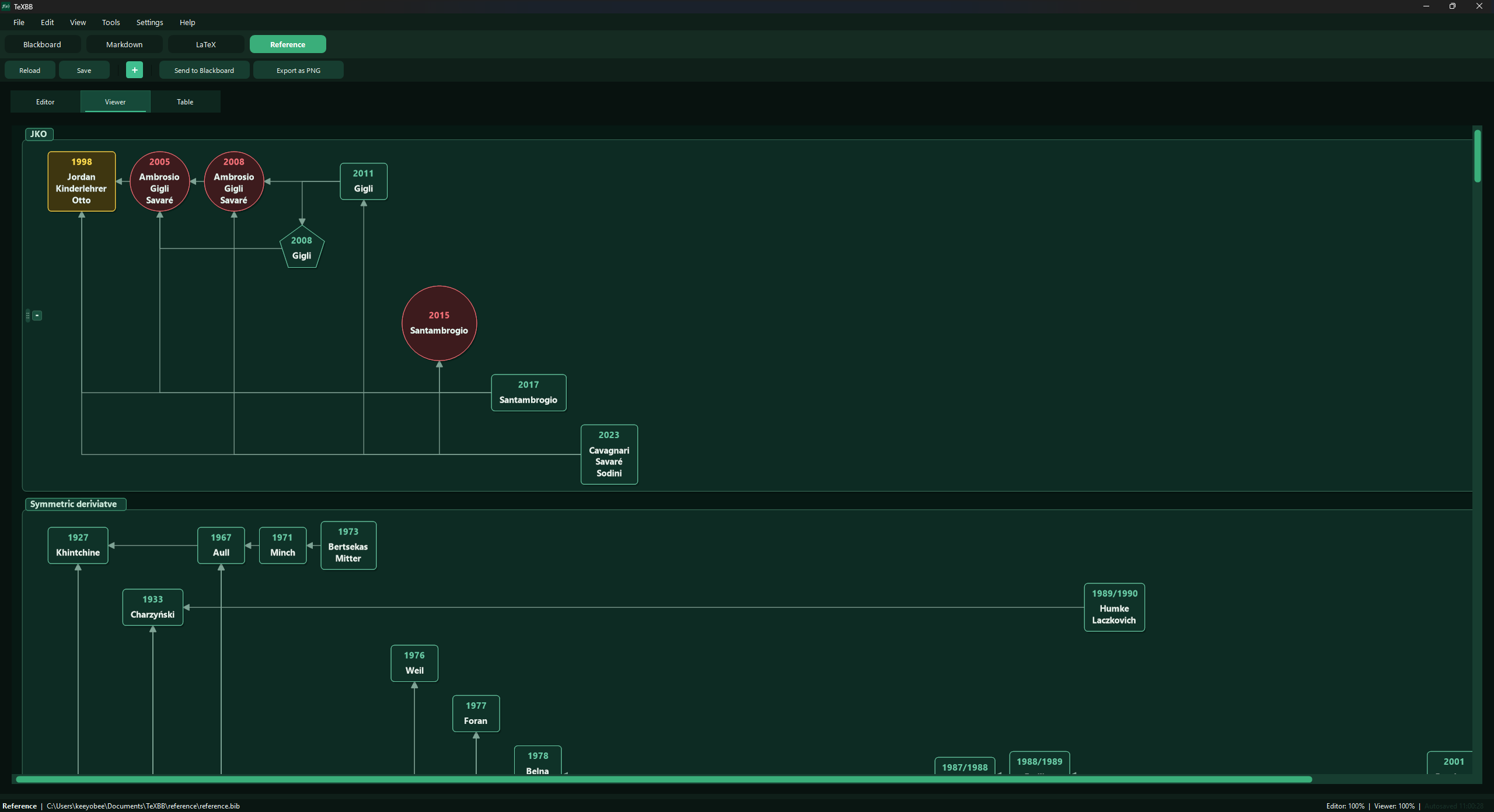
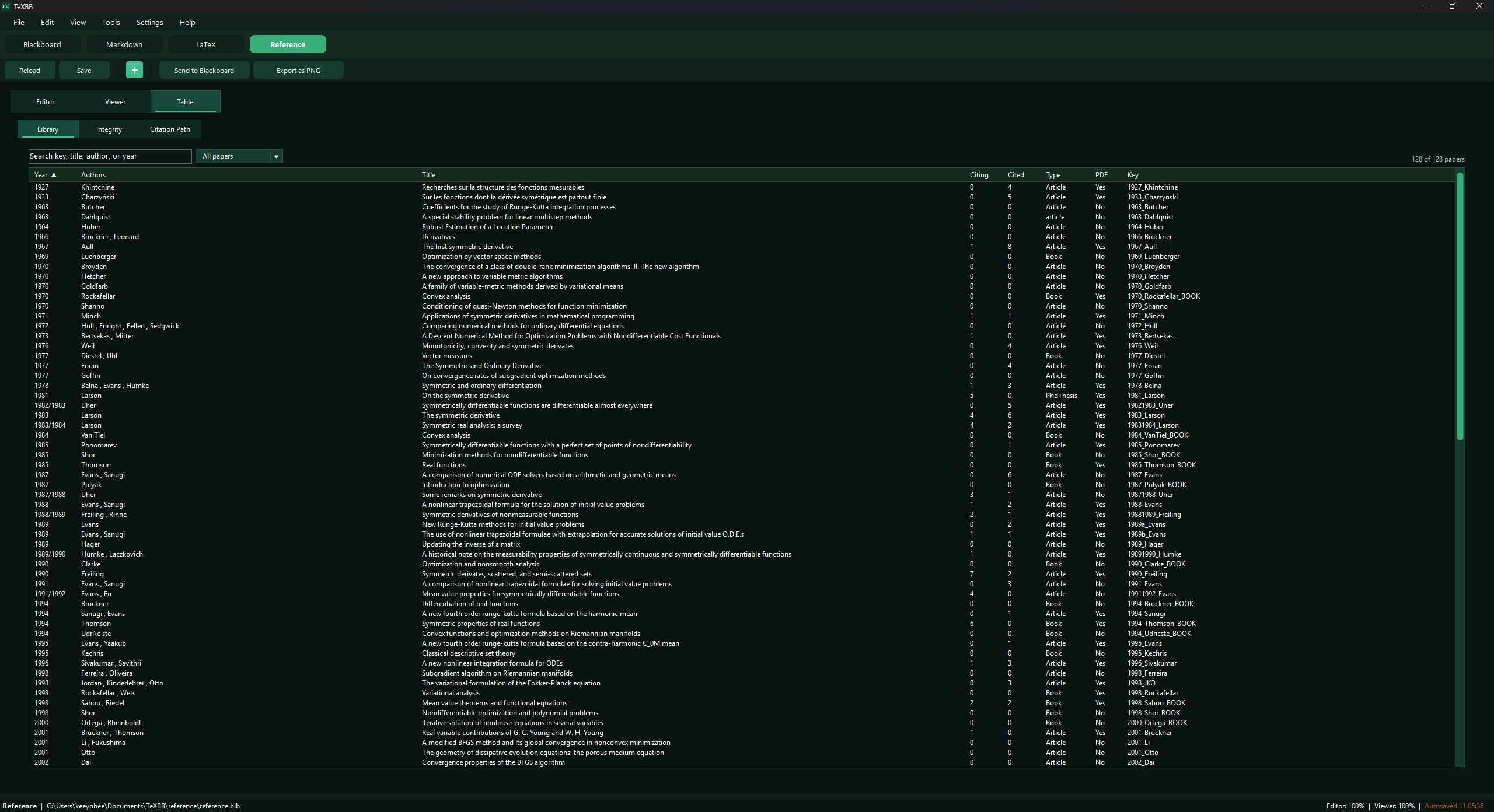
Optional
TeXBB
TeXBB (LaTeX BlackBoard) is a Windows app for LaTeX, Markdown, drawing, and BibTeX references. Use it as a scratchpad for short calculations and notes alongside your main research project in VS Code.
Open TeXBB
Open the official website and follow its Microsoft Store link to install the Windows app. This is an optional tool, not a VS Code extension or a required step in the guidebook.
Official TeXBB websiteKeep using VS Code and GitHub for your main paper. TeXBB can sit beside that workflow when you want a separate place to try an equation, collect a reference, or jot down an idea. The app’s Help > Tutorial provides further examples.
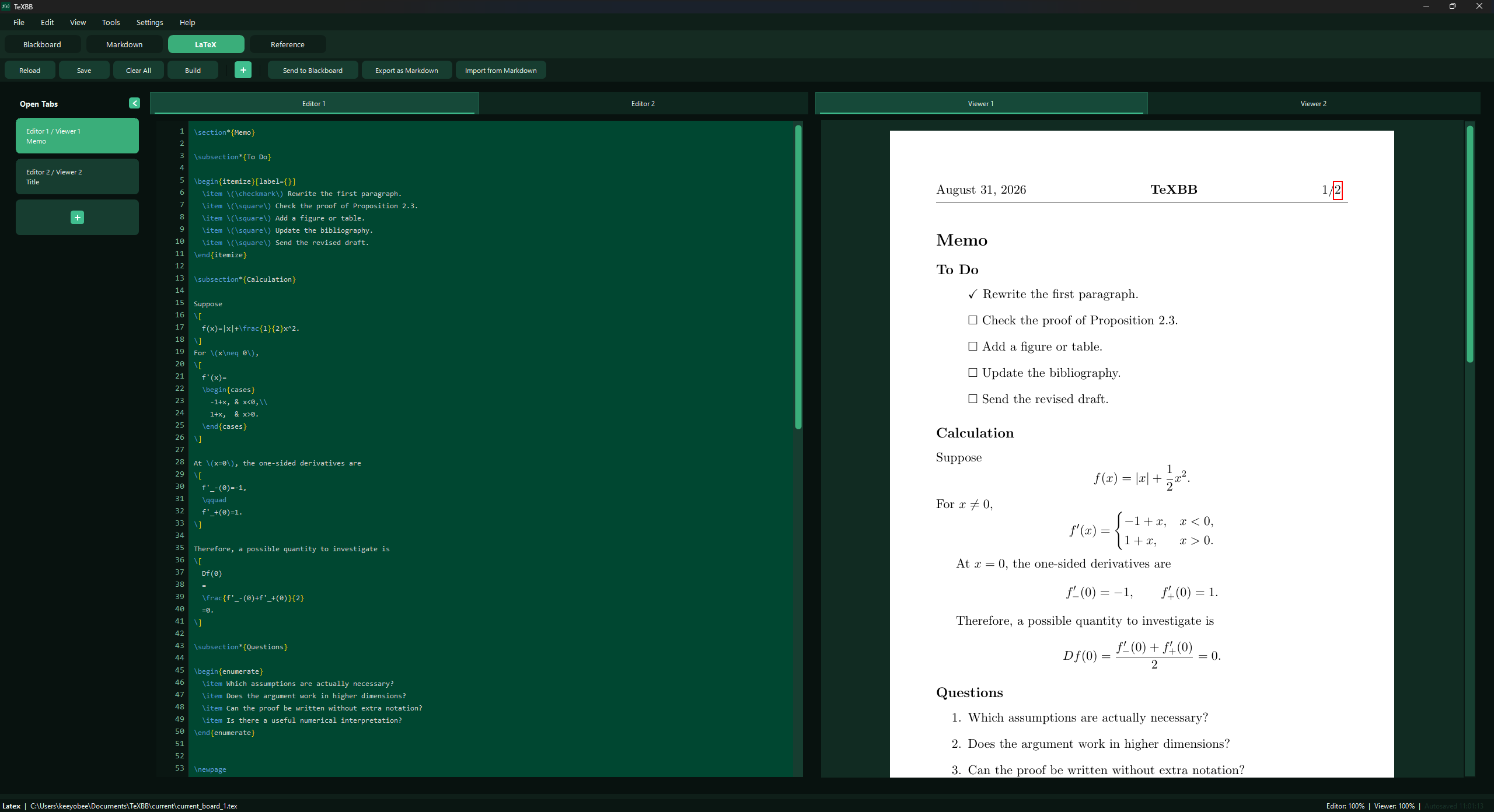
Android viewer
Optionally read synchronized Markdown previews and compiled LaTeX PDFs on a phone. The Windows app works without the Android app. Check the official PC–mobile guide for current installation access and connection steps; use a trusted private network for pairing and synchronization.
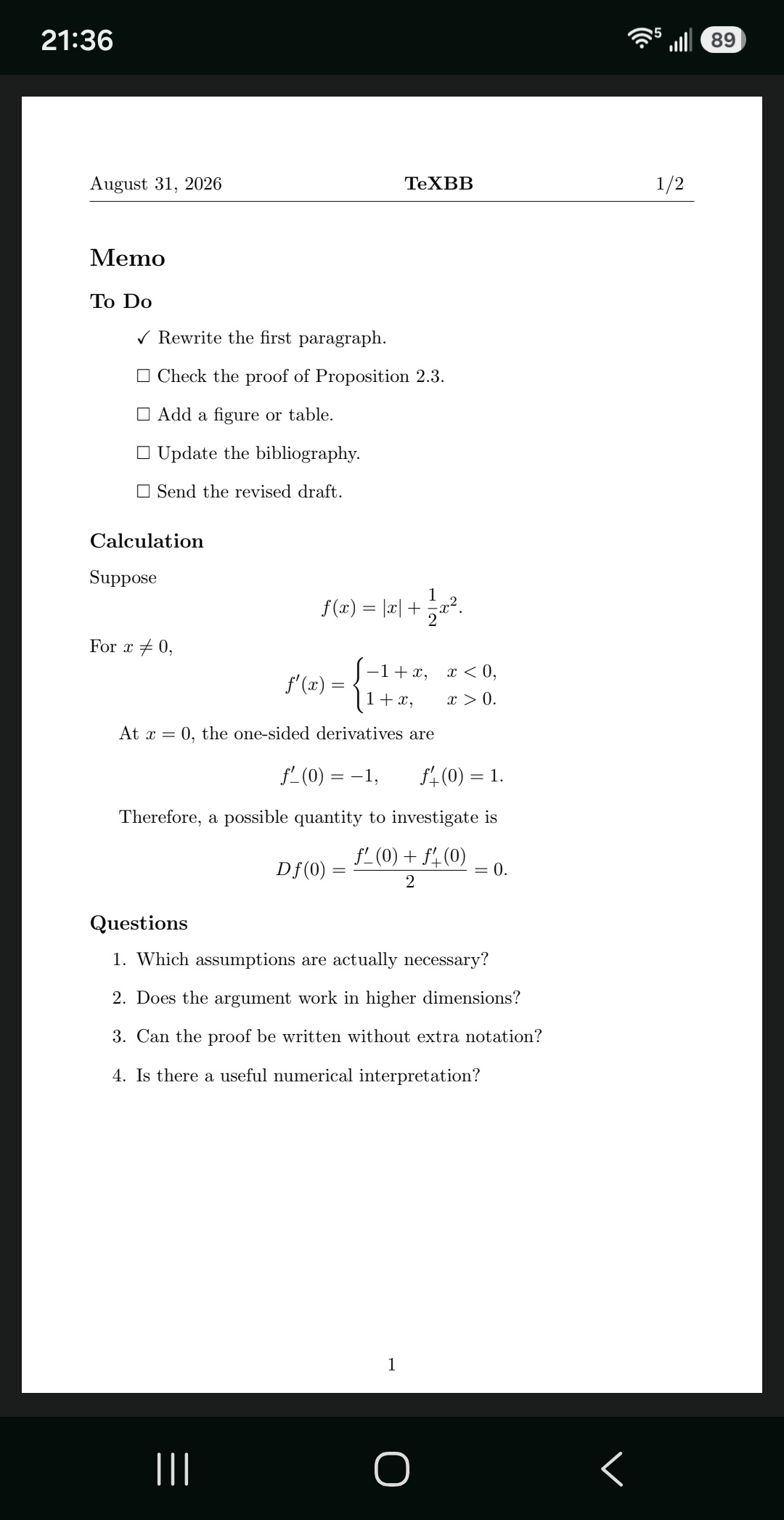
Write a mathematical note
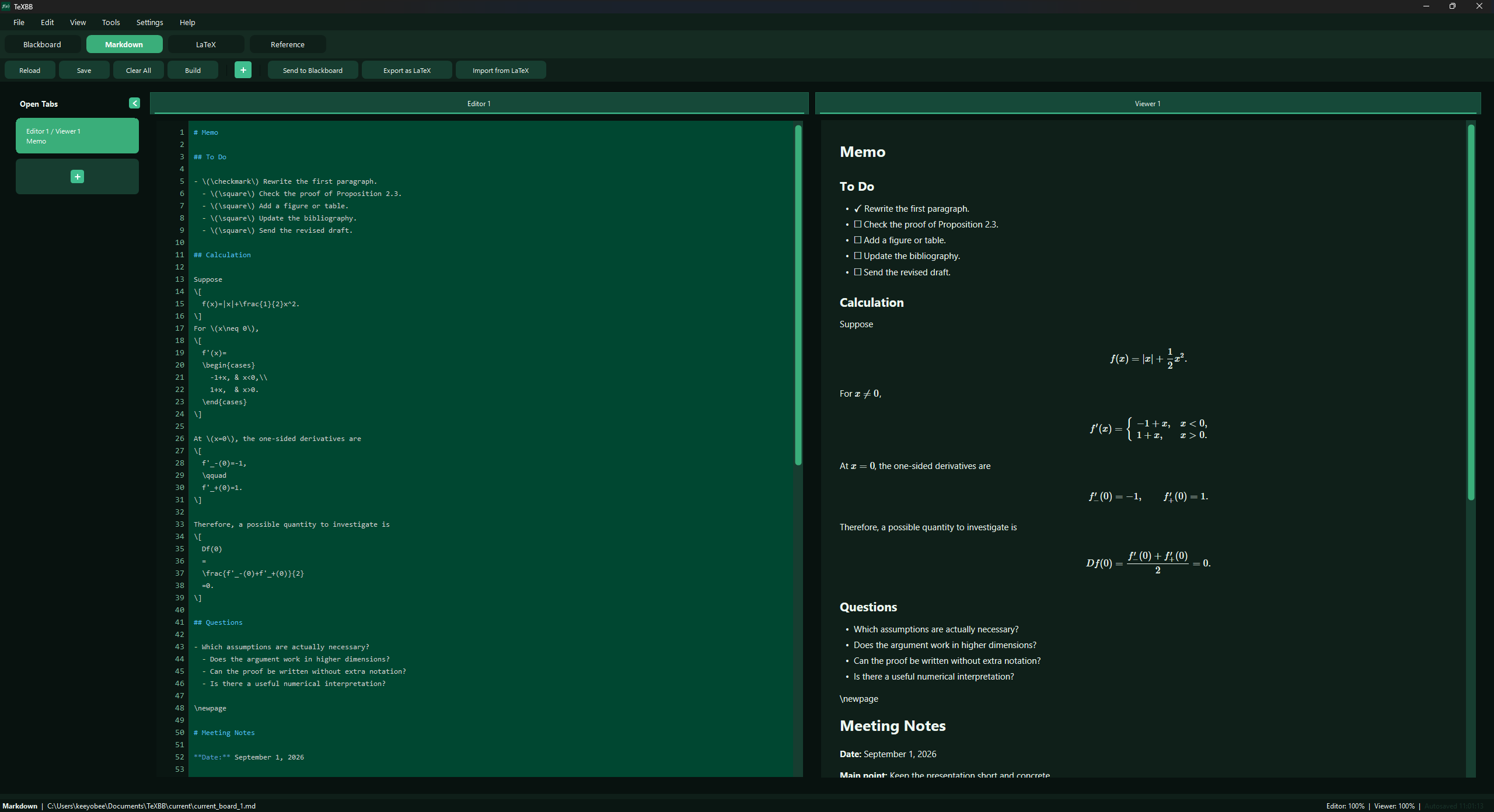
Start with Markdown: it lets you mix ordinary text and mathematical notation without preparing a full LaTeX document.
- Select Markdown at the top of the app.
- Click + to create a separate practice document, then select its editor tab.
- Paste the example below.
- Click Build to save the note and refresh its viewer.
# A quick calculation

For $n \ge 1$, the sum of the first $n$ positive integers is

$$
\sum_{k=1}^{n} k = \frac{n(n+1)}{2}.
$$

- Check the formula for $n=3$.
- Keep the argument here before adding it to the paper.
Use $...$ for a formula within a sentence and $$...$$ for a displayed formula. TeXBB includes the math renderer for these Markdown previews, so you do not need a TeX compiler for this step. Build here refreshes the note; it does not create a LaTeX PDF.
Build a LaTeX PDF
For a short LaTeX draft, use the LaTeX workspace instead. PDF compilation requires a separately installed TeX toolchain. If you completed LaTeX Installation, you can use that existing installation; you do not need a second distribution just for TeXBB.
- Open Settings > LaTeX, find LaTeX setup, and click Scan again. Check that it shows Detected.
- Return to LaTeX and click + to create a practice document from the default template.
- Replace only the template’s body with the example below. Keep its preamble and document structure. If the full source is visible, edit only between
\begin{document}and\end{document}. - Click Build, wait for it to finish, and read the result in the matching Viewer tab.
For $n \ge 1$,
\[
  \sum_{k=1}^{n} k = \frac{n(n+1)}{2}.
\]
If the build fails, open View > Log Panel and check the first compiler error. The viewer may retain the last successful PDF, so an unchanged preview does not necessarily mean the latest build succeeded.
The PDF was built, but the Viewer is empty
Detected confirms that a TeX build tool was found. If the log says No PDF renderer found, the PDF preview also needs the Poppler tools pdftoppm or pdftocairo. See TeXBB Support if you need help with that setup.
Work with references
The Reference workspace lets you edit a BibTeX library and view its entries as a table or a citation diagram. You can use the BibTeX entries collected in the BibTeX guide.
- To try an existing library safely, first make a copy of its
.bibfile. Choose that copy through Settings > Reference > BibTex file > Change File…. - To add citation text you already have, select Reference, open Tools > Reference > Import Citation… (or click +), paste the BibTeX entry, and click Import.
- For direct source edits, use Editor, then Save. Select Table to inspect the entries or Viewer to refresh the diagram.
Citation import uses the text you provide; it is not an automatic DOI or URL search. Editing the practice copy does not automatically update your paper’s .bib file. Save any changes you want to keep to the appropriate project file, then rebuild the paper in VS Code to check them.