Optional
Overleaf
Maintain the workspace as a GitHub repository and connect it to Overleaf. Your collaborator does not need to use GitHub directly. However, sync tasks such as pulling and pushing must be handled manually by you or your collaborator in Overleaf.
Professional subscription
This workflow requires the GitHub-connected features in Overleaf Professional. If your plan does not include that integration, stay with the local VS Code workflow.
Check whether GitHub sync is available in your account and workspace before proceeding.
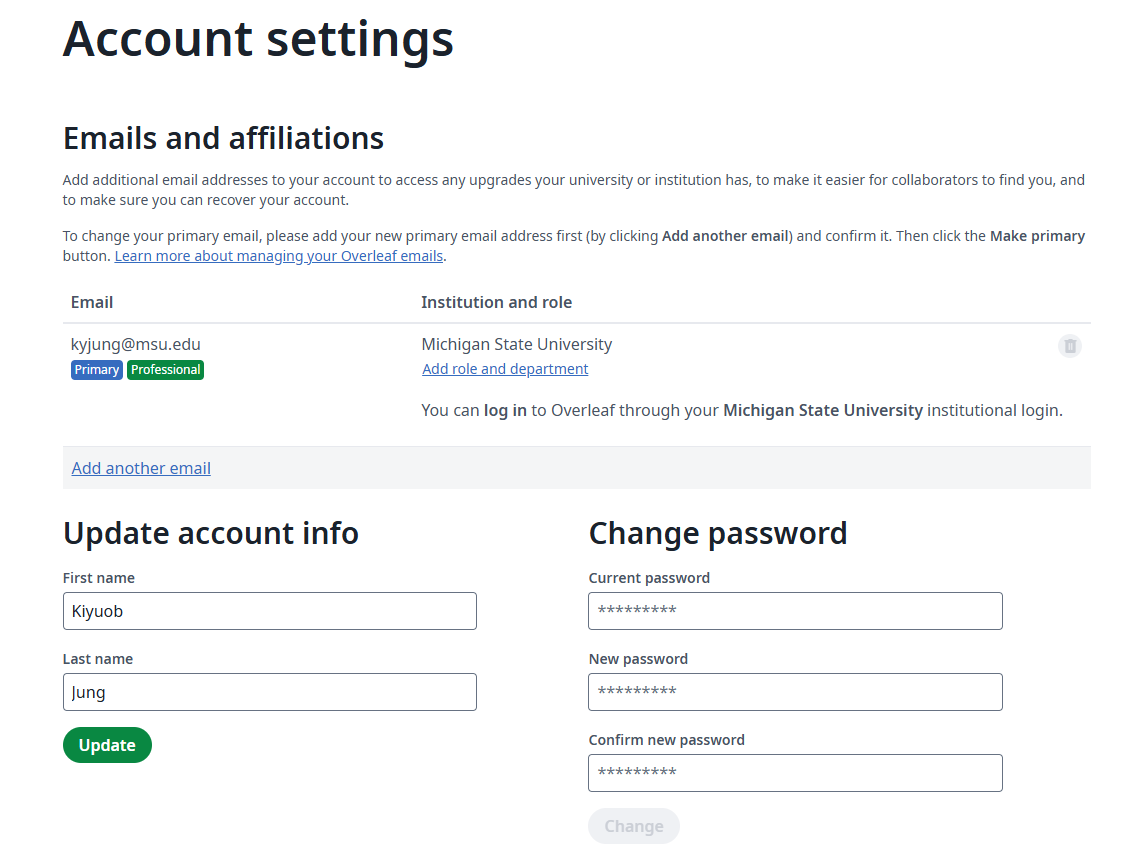
Link GitHub
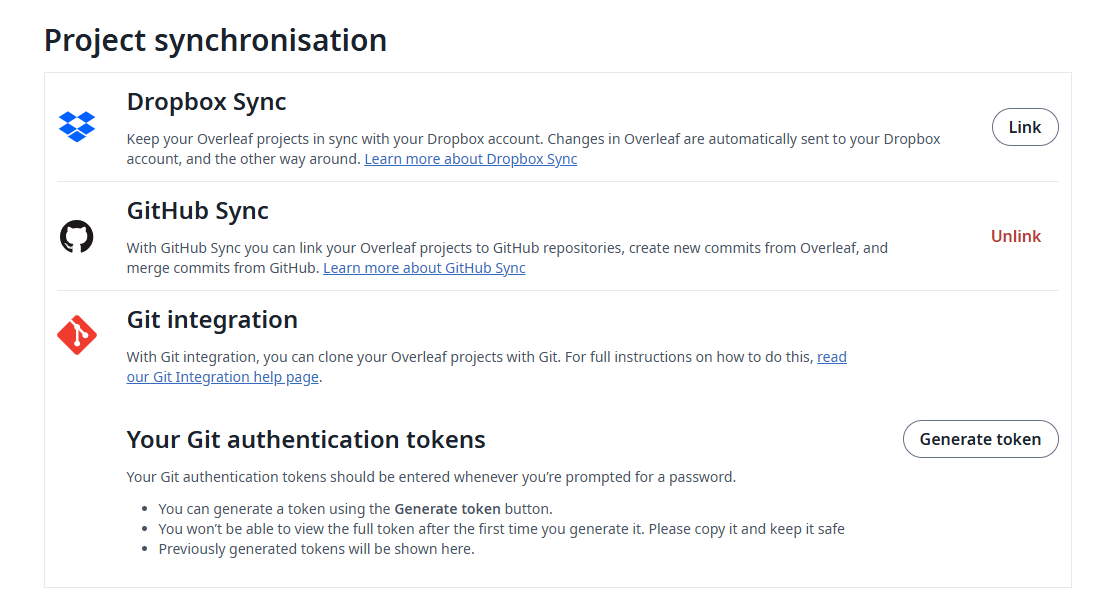
Go to Account Settings and complete the GitHub Sync setup under Project Synchronisation. You can ignore Git integration for now.
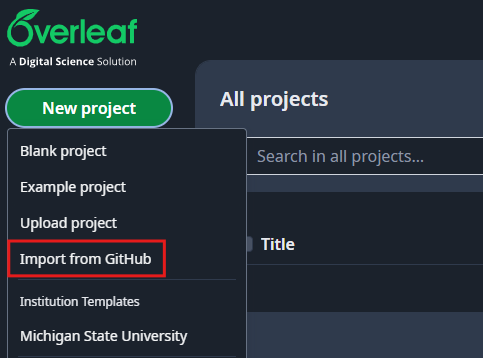
Import from GitHub
Import from GitHub to keep a single repository history instead of creating a disconnected browser-only project.
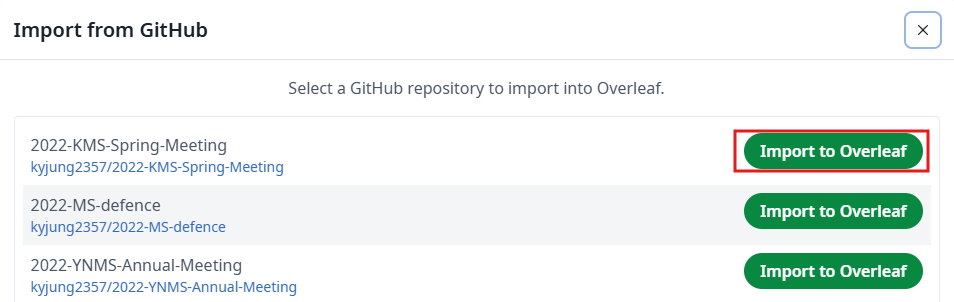
Choose a repository and click the "Import to Overleaf" button.
Work in Overleaf
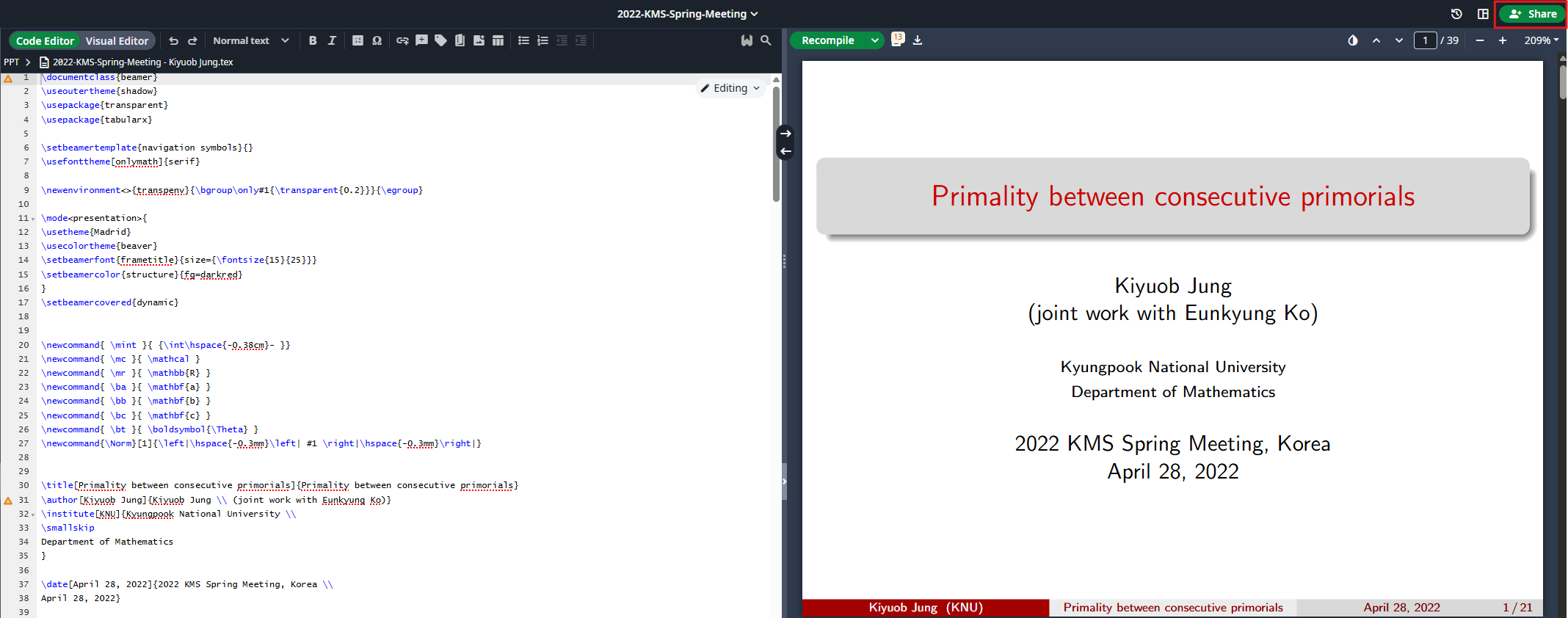
Once the import is complete, you will see the following screen. Collaborators connected to the account can now work in Overleaf.
Push changes back to GitHub
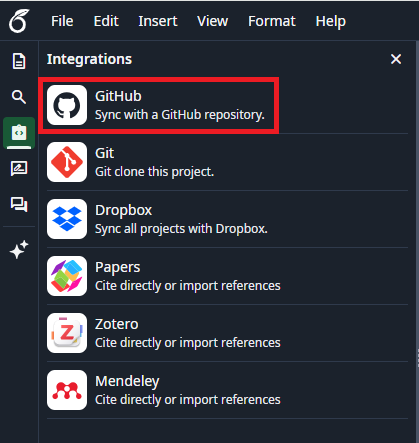
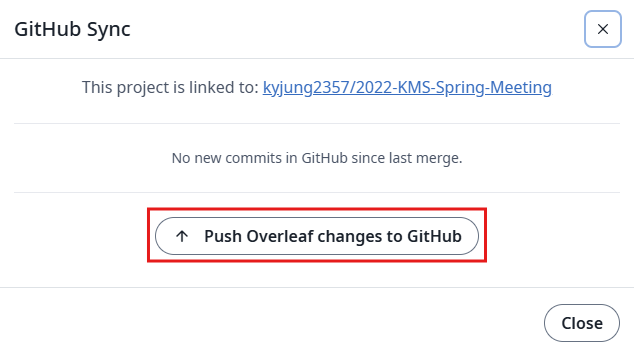
If there are changes in Overleaf or Git, click the GitHub button under Integrations to sync.
Open the GitHub sync controls when you are ready to push browser edits back to the repository.
Before proceeding
Confirm that all of the following are true:
- the repository was imported from GitHub rather than uploaded separately
- Overleaf edits can be pushed back to the same repository
- local VS Code and browser editing still point to one shared project history